Order pad: Pad and Ticket views
The Order pad is the main tool for sending orders. It has two views: the Pad (price, quantity, buy and sell buttons, margin, strategy and position actions) and the Ticket (side and order-type tabs, validity, mini book). The old Simple and Advanced layouts were merged into the Pad.
Where to find it
Add it from the picker (Add tool > Order pad). The gear opens Order pad settings. Under General, Version switches between Pad and Ticket, and the switches below it turn fields on or off. See the Tools catalog.
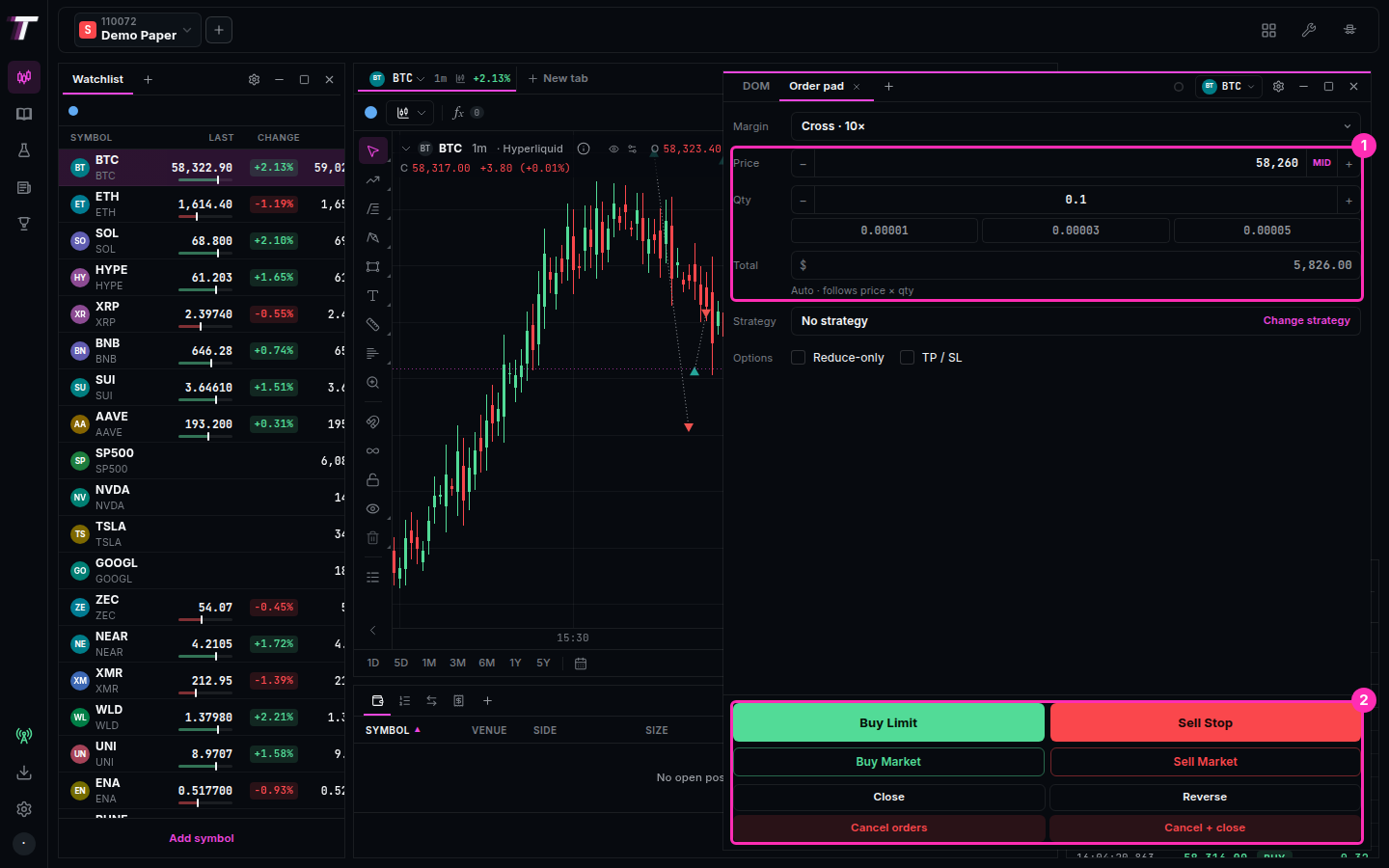
1 Price, quantity and total · 2 Buy, sell and position buttons (Pad view)
Pad view
This is the default view. From top to bottom: the position of the symbol, Margin (margin mode and leverage), Price, Qty with its quantity shortcuts, Total, Strategy, Plan (only on a paper account, with the Journal on and at least one trade plan written), Options (Reduce-only and TP / SL) and Before you send. The buttons are:
- Buy Market and Sell Market.
- Buy Limit / Sell Limit, which use the price in the Price field. When that price is past the market, the labels become Buy Stop / Sell Stop.
- Close, Reverse, Cancel orders and Cancel + close.
The Total and the quantity are editable and stay in sync with the DOM and Flash. The symbol is the one shown in the bar of the pad's window and the account is the active one. In Order pad settings you choose which buttons and fields appear (Leverage and margin mode, Market buttons, Quantity shortcuts, Total, Strategy button, Cancel orders, Reverse, Close, Cancel orders + close), and Follow the DOM last clicked makes the pad take the symbol of the DOM you clicked last.
Ticket view
Pick Ticket under Version to get the full ticket; see Order Ticket.
| Field | What it is for |
|---|---|
| Buy / Sell tabs and Market, Limit, Stop tabs (Stop Limit only on live accounts on Hyperliquid and Aster) | Side and order type; see Order types |
| Margin | Margin mode and leverage on the venue |
| Price and Stop | Order price and stop trigger |
| Qty and Total | Quantity and the order's estimated value |
| Validity | GTC, IOC or ALO, on Limit orders; see Time in force (TIF) |
| Strategy | The strategy in force (No strategy or a saved one); see Brackets |
| Options | Reduce-only: the order can only decrease the position |
| Routing | Smart routing; shows Routes to {venue}. See Smart Order Routing |
| Before you send | The stop and target that go out with the order, and Reward : risk |
Confirmation and safety
Under Settings > Trading you choose the Submit mode: Confirm (opens a window such as Confirm Buy Limit) or Instant. The Don't ask again (place instantly) option switches to instant submit. After the click, a 150 ms guard prevents duplicate orders from a double click.
Important: the pad acts on the active account and trades the symbol shown in its window bar. That symbol changes only when you pick another one there or when the pad's link group changes it, not every time you switch charts. If the window shows another account, orders are off there (Different account).
Frequently asked questions
Why is the send button blocked? Quantity or price is missing, the market is closed, the stop has already crossed the price or the account cannot trade the venue. See Order rejected.