Order Ticket
The Order Ticket (called "Boleta" in Portuguese) is the tabbed order ticket: you choose the side and type in the tab, fill in price and quantity, and send. It is the same tool as the Order pad in another format.
Where to find it
Open the gear of the Order pad (Order pad settings) and, under General, set Version to Ticket (Pad to go back). See Order pad: Pad and Ticket views.
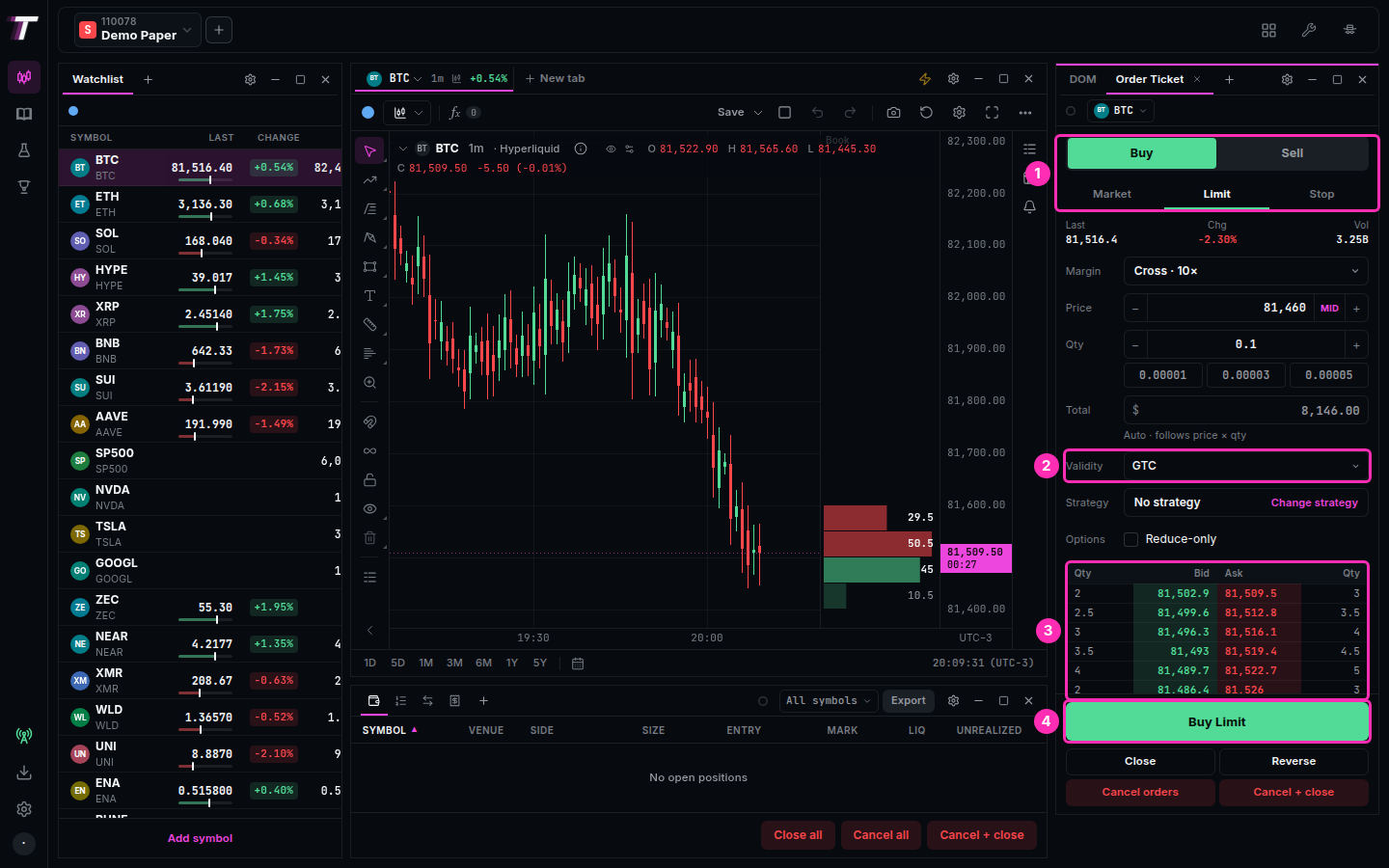
1 Buy / Sell and order-type tabs · 2 Validity · 3 Mini book · 4 Send
The tabs
| Tab | What it does |
|---|---|
| Buy / Sell | The side of the order; the send button follows it |
| Market | Sends at market; the price shows At market |
| Limit | Sends a limit order at the Price |
| Stop | Sends a stop; the Stop field holds the trigger |
| Stop Limit | A stop with a limit price: Stop is the trigger and Price the limit. Only on live accounts on Hyperliquid and Aster; on a paper account the tab does not appear |
Fields
- Margin — margin mode and leverage on the venue.
- Price — the order price (a limit, or the limit of a stop-limit). The window bar of the tool picks the symbol and the account is the active one.
- Stop — the trigger price, on the stop tabs.
- Qty — quantity, with its shortcuts.
- Total — the order's estimated value; you can also edit it.
- Validity — GTC, IOC or ALO, on Limit orders. See Time in force (TIF).
- Strategy — No strategy or a saved one (Change strategy, Edit strategies, New strategy). A strategy's stop and target go with Market orders only; see Brackets.
- Options — Reduce-only.
- Routing — Smart routing and the Routes to {venue} preview; only for Market orders on a live account, when the operator enables it.
- Before you send — the stop and target that go out with the order and Reward : risk.
Above the fields are the quotes (Last, Chg, Vol). The mini book (Mini-book, which you can turn off in Order pad settings) is clickable: clicking a price in the book puts it in the Price field.
Send and confirm
Click the send button, which names the side and type (for example Buy Limit). Depending on the Submit mode under Settings > Trading, a window such as Confirm Buy Limit appears with the order details. The confirmed order is exactly what you saw, even if you change symbol before confirming.
Notices you may see
- Set the price first, Set the quantity first, Set the stop first or Set the stop limit price first — a field is missing.
- The stop would fire immediately — the trigger is already past the mark. Move the trigger. — see Order errors and rejections.
- Market closed. Orders enter when the session reopens.
- This account can only trade on {venues}. — the account cannot trade the asset's venue.
Frequently asked questions
How do I send at market? Pick the Market tab; the price then shows At market.
Is the Order Ticket a separate tool? No. It is the Order pad in ticket mode; old layouts of the Order Ticket tool were migrated to it.