Mobile interface
On phones and tablets in portrait, Tron Charts swaps the windowed workspace for its own interface, with a bottom navigation bar, one tool screen at a time and a risk strip while you have open positions or orders.
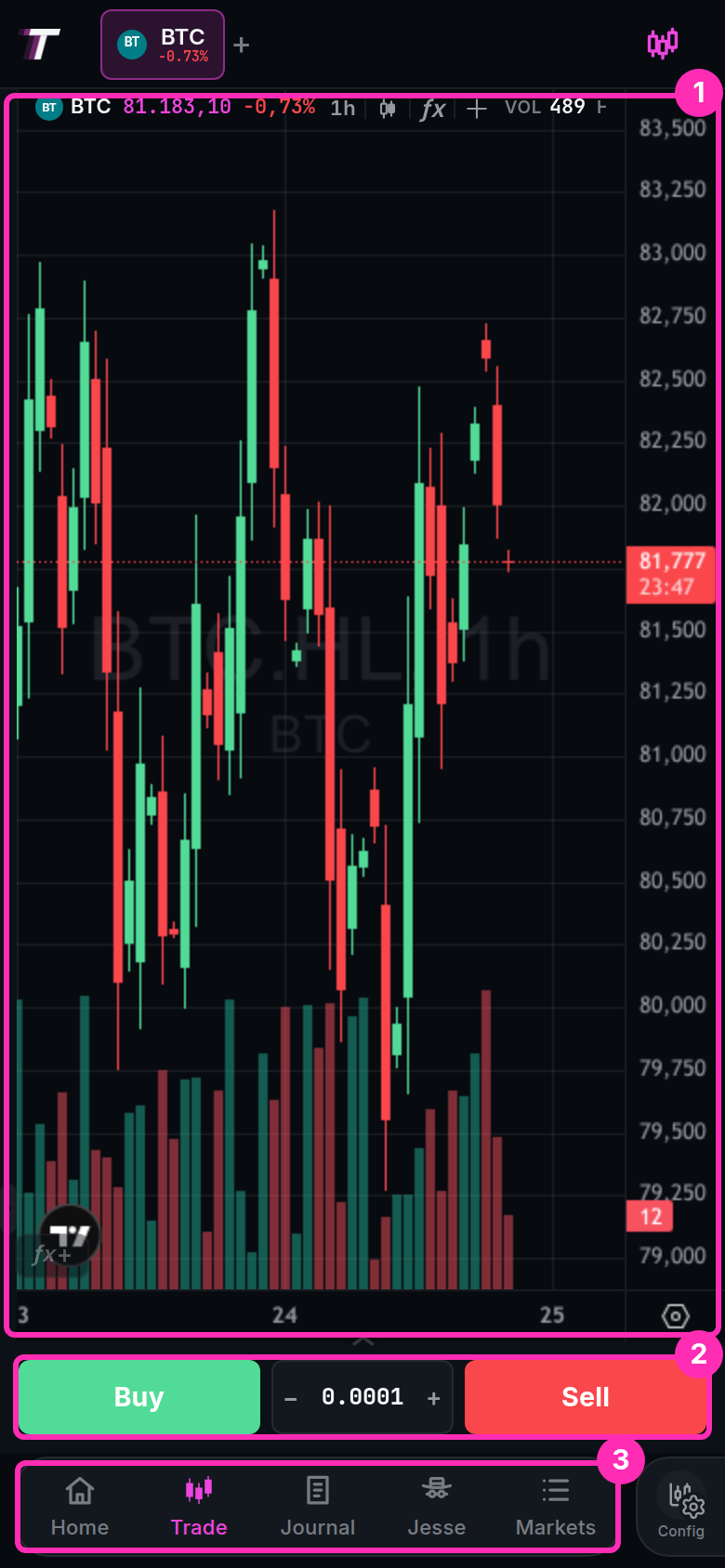
1 Chart · 2 Buy and Sell with quantity · 3 Bottom navigation bar
Where to find it
The mobile interface appears by itself on screens up to 768 px wide, or up to 1024 px in portrait. You can install the app to open it like an application.
Navigation bar
The bottom bar shows five entries. By default: Home, Trade, Journal, News (if the operator turned it on) and Jesse. Without News, Markets takes the fifth spot. Beside it, your profile icon (or Config, when a tool with settings is open) opens the menu.
The rest of the menu sits in a panel that slides up from the bar: Markets (when it is not on the bar), Positions, Strategy Lab, Rewards and, depending on the operator, Funded, Copy and Following.
To customize, open the panel and use Edit menu: drag an item onto the bar to put it there, Remove items you do not use and Add them back whenever you like.
Risk strip
On the trade screen, below the chart, OP&L (open P&L) and CP&L (closed P&L) of the symbol sit above Buy, the quantity and Sell. While you have open positions or orders, a risk strip also shows OP&L, Close all and Orders. The Close all button asks for confirmation: Close all positions? Working orders stay active. Tapping OP&L or Orders takes you to the positions and orders tables. DLL (daily loss limit) and PTGT (profit target) show in the profile menu, next to OP&L and CP&L.
Profile menu
The profile button sits to the right of the bar: your photo with your @handle (or the account name) below it, or More while you are signed out. The menu opens with your @handle, the OP&L, CP&L, DLL and PTGT figures and, below them, the settings: the general list or, when the button shows Config, the settings of the tool on screen. The footer has the Language selector, Currency, Install app, theme and Sign out.
Home screen and tools
The Home screen gathers your accounts, the market map and the calendar; see Guided tour and home screen. Each tool opens full screen, one at a time. Super Charts has its own version for small screens.
Frequently asked questions
Why don't I see Funded or Copy? They are optional modules; they show up if the operator turned them on.
Does my desktop layout show up on mobile? No. Windowed workspaces exist only on desktop and do not sync across devices.