Edit layout mode
Edit layout mode is the structural editor for Panes workspaces: split panes, remove them, resize, make them collapsible and choose the tools in each. Changes only apply when you save.
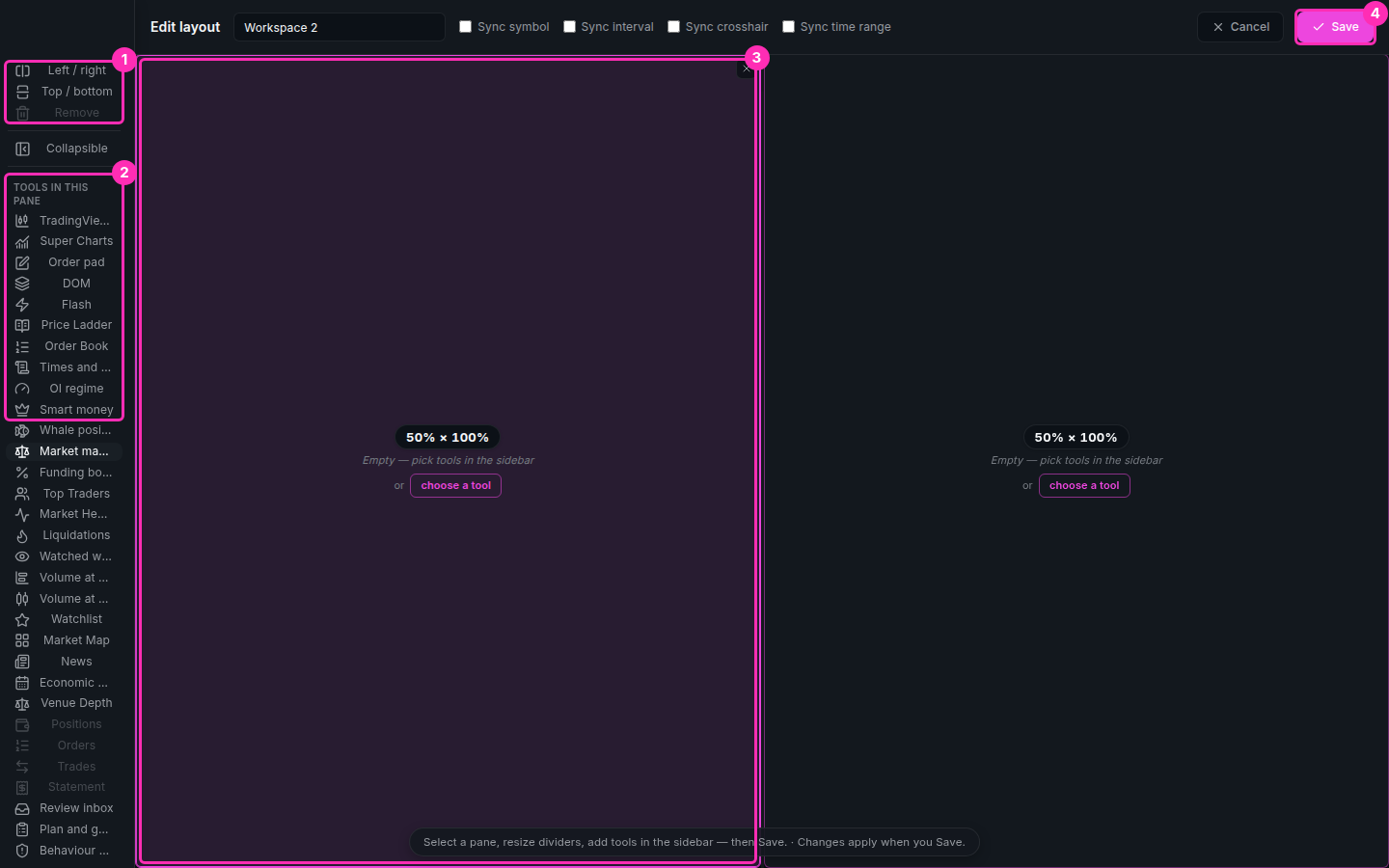
1 Split or remove pane · 2 Available tools · 3 Selected pane · 4 Save
Where to find it
In the workspace menu in the header, click Edit layout. The option only shows when the workspace is of the Panes type. In Windows workspaces, you rearrange by dragging windows; see Floating windows.
Edit
- Click Edit layout. A gray overlay covers the workspace skeleton.
- Select a pane. The on-screen hint says: select a pane, resize dividers, add tools in the sidebar, then save.
- Adjust whatever you need (see below).
- Click Save to apply or Cancel to discard everything.
You can also rename the workspace in the Workspace name field and tick Sync symbol, Sync interval, Sync crosshair and Sync time range for charts.
What you can do to a pane
| Action | How |
|---|---|
| Split | Split left / right or Split top / bottom |
| Resize | Drag the dividers between panes |
| Remove | Remove pane (Remove pane from layout) |
| Collapse | Tick Collapsible and choose where it Docks to |
| Tools | Under Tools in this pane, tick the ones the pane will hold |
Rules:
- A workspace needs at least one pane (A workspace needs at least one pane).
- Charts need their own pane.
- Panes have a minimum size, so you cannot squeeze one out of sight.
Important: on save, the live layout is replaced by the edited one. Charts that survive the change keep their state.
Frequently asked questions
I cancelled my edits by accident. Cancel discards the changes; redo the edit.
I want to rearrange a Windows workspace. Move and tile the windows directly, without this mode.