Watchlist
The watchlist tracks the symbols you care about, with live price, change and other columns. Click a symbol to load it on your charts.
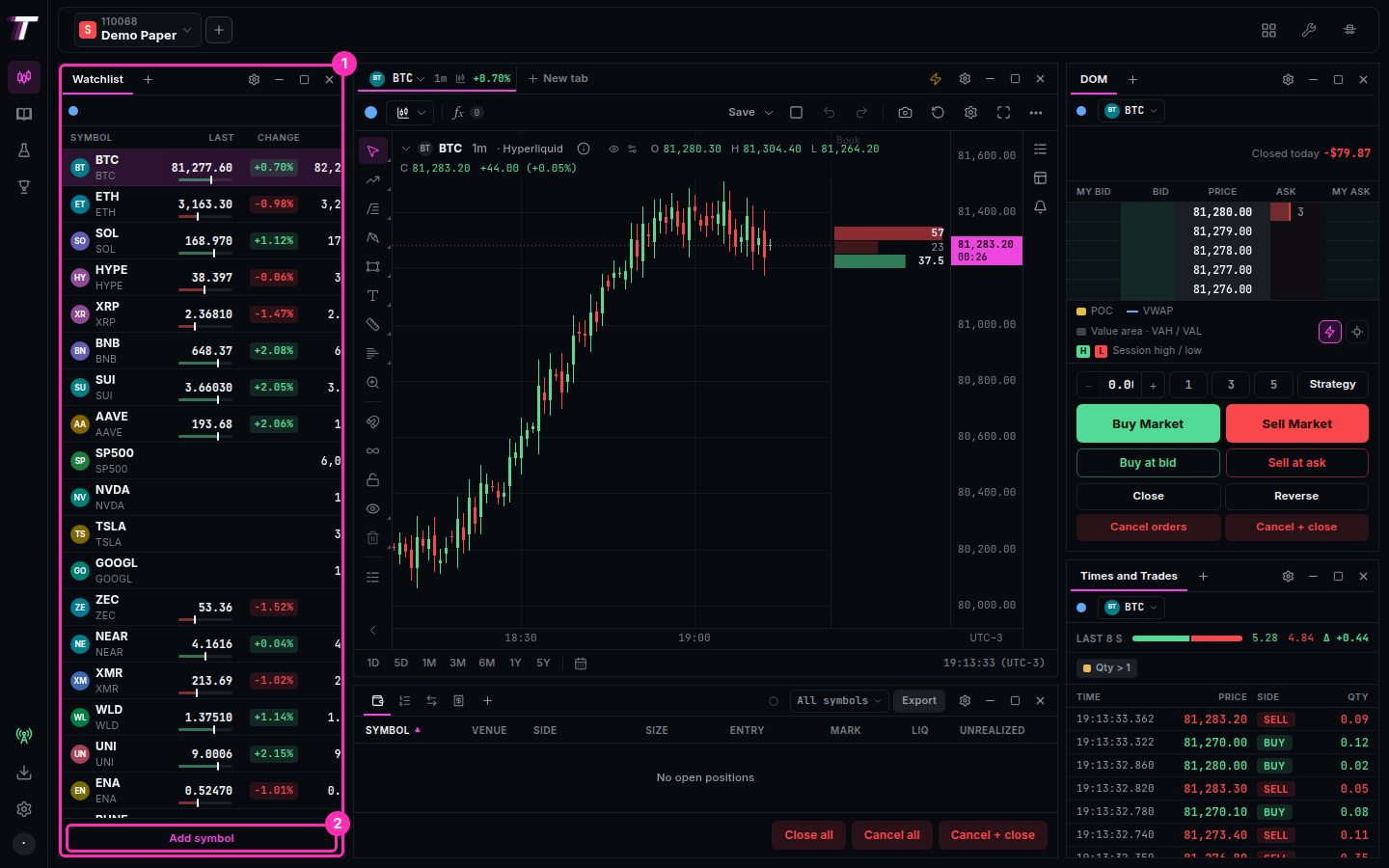
1 Watchlist · 2 Add symbol
Where to find it
Add the Watchlist tool from the Tools menu or from a pane's +. In new Windows workspaces it already comes open next to the chart. On mobile, it is under Markets.
Build your list
- Add — click Add symbol at the bottom of the list (or Add a symbol on an empty list), type in Add symbol… and pick the market. With no match, a message shows the term you searched.
- Reorder — Drag to reorder the row.
- Remove — the
xon the row (Remove {symbol}). - Open on chart — click the row.
A new list starts empty (Watchlist is empty.). Each watchlist tool has its own symbols, columns and sorting.
Columns
By default you see Symbol, Last, Change, High, Low and Volume. You can also turn on:
| Column | Shows |
|---|---|
| Candle | The period's candle |
| Chart | Price sparkline |
| Chg | Absolute change |
| Prev. Close | Previous close |
| Open | Opening price |
| Time | Time of the last update |
| Trades | Number of trades |
| Quantity | Quantity of the last trade |
| Average | Average price |
| Week, Month, Year | Change over the period |
To choose columns, open the tool's gear, go to Settings and use Visible columns. Click a column header to sort and drag its edge to change the width.
Tip: watchlist presets store only column visibility. Symbols and sort order stay with the list in that workspace.
Frequently asked questions
My symbol does not show up in search. Search lists the markets of the venues the operator turned on. See Markets, venues and symbols.
Does the list sync to another computer? No. It is saved with the workspace, on the device.