Workspaces, panes and tools
Your trading screen is organized in three levels: the workspace holds the layout, panes divide the space, and tools (chart, DOM, positions and more) fill those panes or float as windows.
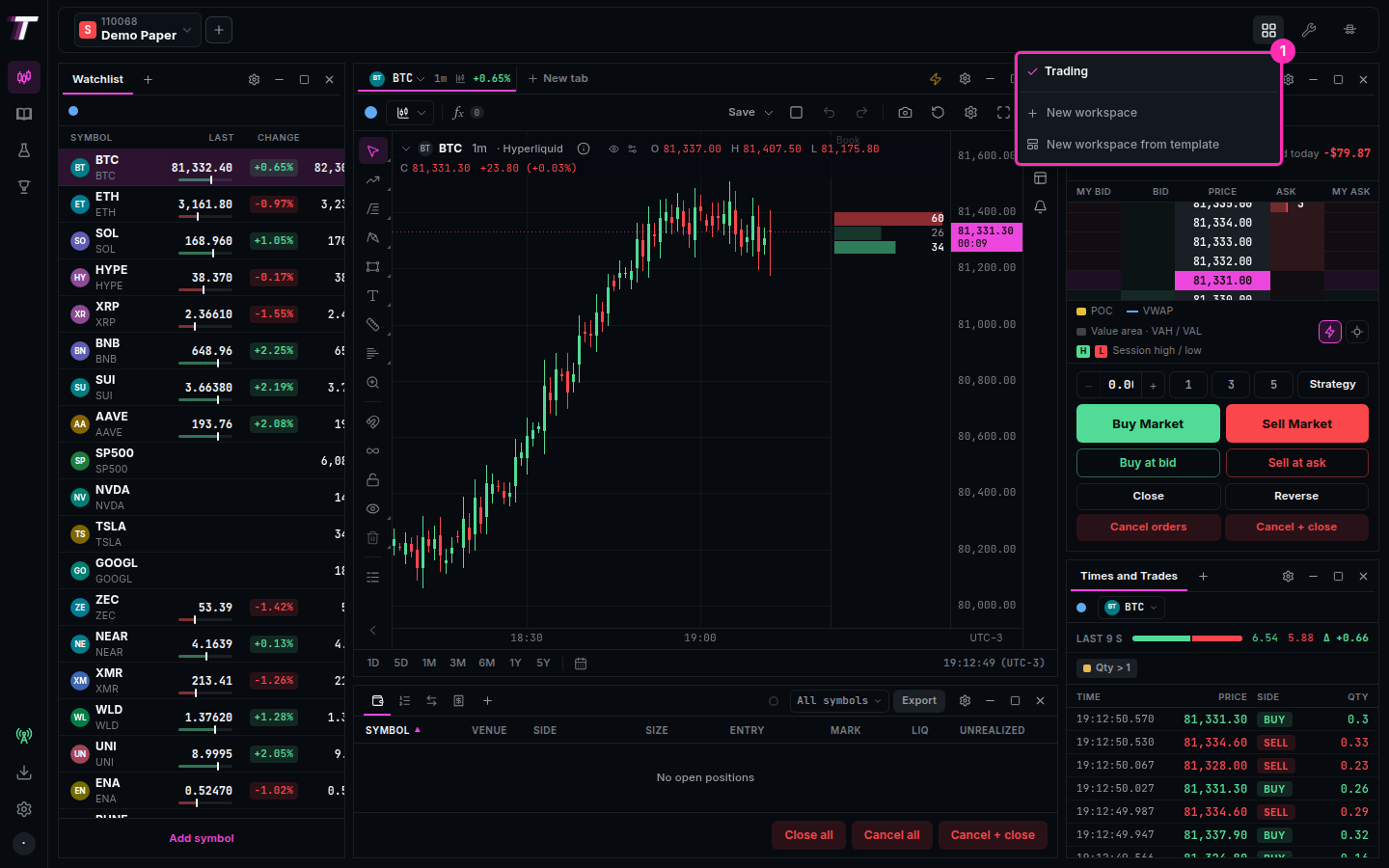
1 Workspaces menu
Where to find it
The Workspaces menu (the grid icon, Workspace: {name} on hover) sits in the header; in Left fixed menu mode it moves to the sidebar. There you switch, rename, duplicate, delete and create workspaces. Journal has its own workspaces, as tabs of the journal (New journal workspace, New from template, Reset to template), kept apart from the ones above.
Two kinds of workspace
When you create one, in New workspace, you choose the Type:
- Windows — the default. It starts with a chart, watchlist, DOM and positions as floating windows you move and resize freely. See Floating windows.
- Panes — a divided grid. You choose the number of panes, fill each with tools, and can adjust the structure later. See Edit layout mode.
The type is set at creation and does not switch later. In Panes, Sync symbol and Sync interval make charts follow the same asset and timeframe.
Panes and tools
A pane is a cell of the layout with tabs, like a browser. Each tab is a tool.
- Add tool — the
+button on the tab bar opens the catalog; see Tools catalog. - Switch tabs — click; drag to reorder.
- Remove tool and Remove pane — the pane is only removed when you close its last tab, with confirmation.
- Collapse — collapsible panes fold into an edge and reopen with a click.
- Swap position — drag a pane and drop it on another (Drop to swap).
Limits
| Limit | Value |
|---|---|
| Workspaces (Trade) | up to 5 (Max 5 workspaces) |
| Journal workspaces | up to 8 (Up to 8 workspaces) |
| Charts per workspace | up to 10 |
| Each tool (except charts) | up to 4 per workspace |
| Charts | need their own pane |
Saving
Workspaces are saved automatically in the device's browser. They do not sync across devices. Ctrl+S forces a save, and Ctrl+1 to Ctrl+9 switch workspaces.
Tip: use Duplicate before trying a new layout; if you do not like it, go back to the copy.
Frequently asked questions
I lost my layout on another computer. It is saved only on the device where it was created.
Can I turn a Windows workspace into Panes? No. Create a new workspace of the type you want.