Spotlight search
Spotlight is the platform's single search: in one place you find assets, timeframes and indicators, and trigger a few quick actions. Open it, type and pick, without taking your hands off the keyboard.
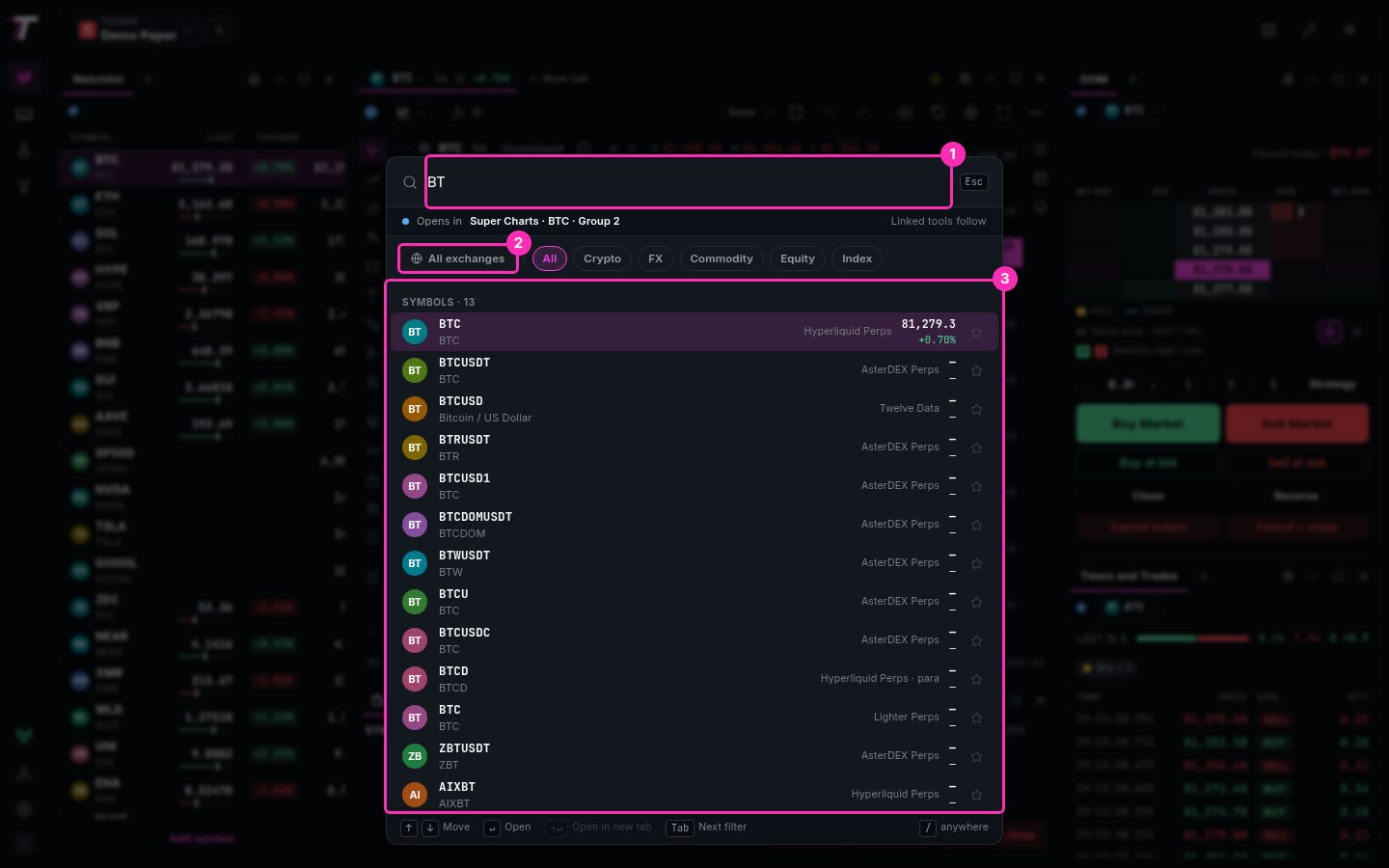
1 Search field · 2 Filter by exchange · 3 Grouped results
Where to find it
- Press
Ctrl+K(⌘Kon Mac) on any screen. - Or just start typing a letter or number outside a text field: Spotlight opens with what you typed.
- Clicking a chart's asset name or timeframe also opens search, already focused on that kind.
Tip: keys held with
Ctrl,Alt,⌘orShiftdo not open Spotlight, because they are reserved for shortcuts such as buy and sell.
What you can search
- Assets — markets from all available venues. Use Filter by exchange to limit to one venue; the search shows "Filtered: {venue}" and All exchanges clears the filter. The All, Crypto, FX, Commodity, Equity and Index chips filter by asset class.
- Timeframes — change the timeframe of the focused chart.
- Indicators — add an indicator to the chart.
- Actions — Close all positions and Ask the companion for help, which opens the Jesse assistant.
Results come grouped and, when nothing matches, you see No results.
Navigate
- Type the term.
- Use the arrow keys to move through the results.
- Press
Enterto choose, orEscto close.
The chosen asset goes to the focused chart. If you opened Spotlight from a specific tool's search, or from a Super Charts tab, the choice goes to it.
Frequently asked questions
I typed a letter and Spotlight opened by accident. That happens when focus is not in a text field. Click the field before typing.
The asset I am looking for does not show up. The list depends on the venues and modules the operator turned on. See Markets, venues and symbols.
Is there a settings search? Yes, the Search field in Settings. See Profile and preferences.