Floating windows
In Windows workspaces, each tool lives in a window that you move, resize, overlap and arrange like objects on a desk. In Panes workspaces, you can also detach a tool as a window.
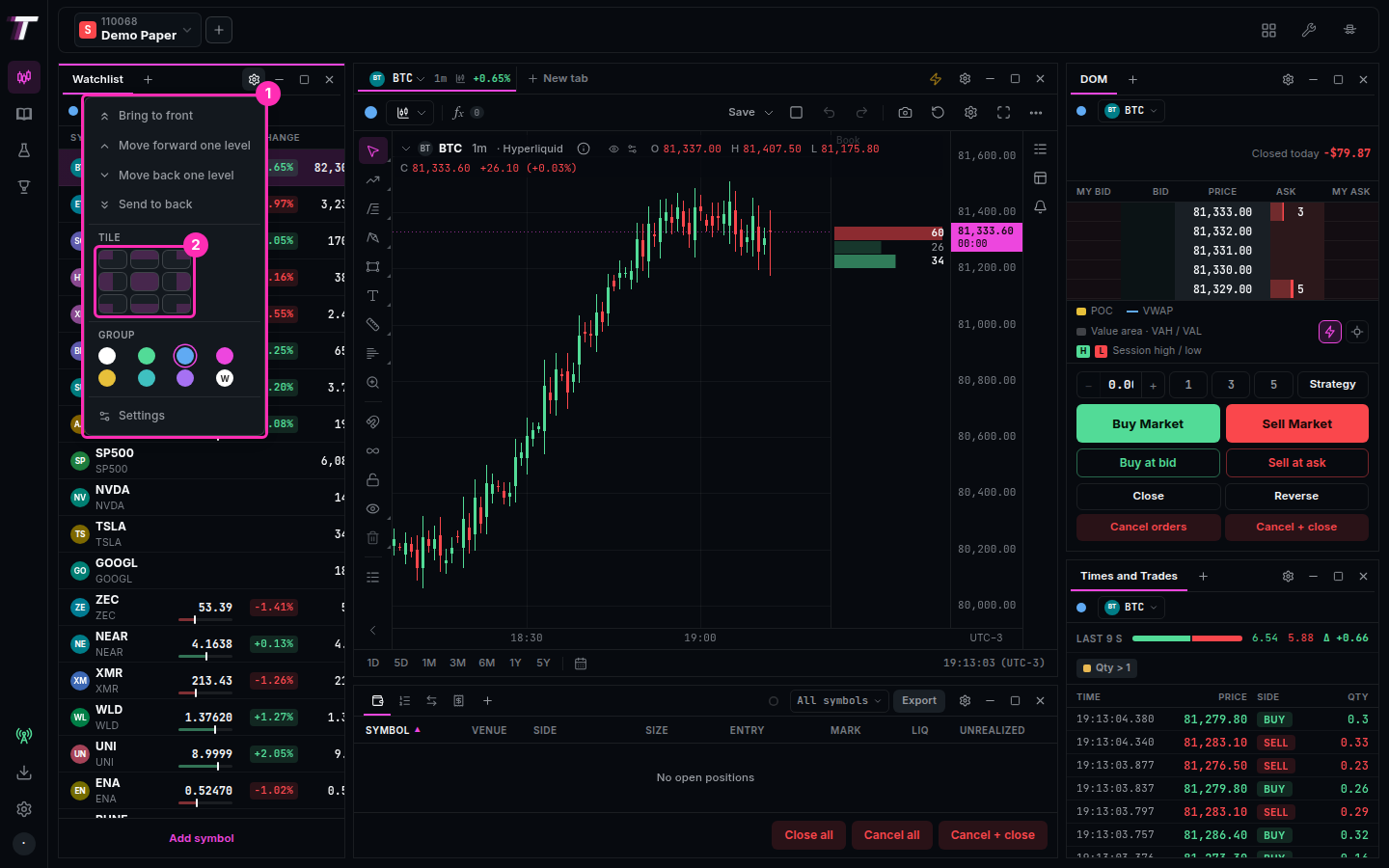
1 Window Options menu · 2 Arrange in halves and quadrants
Where to find it
- Open a tool as a window — the Tools menu in the header (available on Trade). Pick a tool under Open {tool} floating.
- Window controls — in the title bar: Options, Minimize, Maximize (or Restore) and Close.
- Detach from a pane — in Panes workspaces, the pane gear has Detach.
Move and resize
Drag the title bar to move and any edge to resize. The window snaps to a grid when dropped.
- Hold
Shiftwhile dragging to place it freely, without snapping. - Hold
⌘while dragging to Re-attach to layout: the window goes back into a pane.
Both modifiers can be changed in Settings > Hotkeys > Pointer modifiers.
Options menu
The window's Options menu gathers:
- Attach to layout — in Panes workspaces, returns a detached window to a pane.
- Bring to front, Move forward one level, Move back one level and Send to back — control stacking.
- Tile — snaps the window to Left half, Right half, Top half, Bottom half, one of the four quarters or Maximize.
- Group — links windows so they share the asset.
Minimized windows sit in a tray; click to restore.
Keyboard shortcuts
| Action | Default shortcut |
|---|---|
| Left, right, top, bottom halves | Ctrl+Alt + arrows |
| Corners | Ctrl+Alt+U, I, J, K |
| Maximize or restore | Ctrl+Alt+Enter |
| Minimize the focused window | Ctrl+Alt+M |
| Tile all windows | Ctrl+Alt+G |
| Window switcher | ⌘ + ` |
| Close the focused tool | Ctrl+W |
Limits
A Windows workspace accepts up to 10 charts, up to 4 windows of each other tool and up to 24 windows in total. When a limit is reached, the menu shows Limit reached.
Frequently asked questions
My window disappeared. Check the minimized tray or use Ctrl+Alt+G to tile everything.
My keyboard has no ⌘ key. Change the modifier in Hotkeys.