Install the app (PWA)
Tron Charts can be installed as an app from your browser, with its own icon and a window without an address bar. Installing the PWA downloads nothing: it is the web platform itself. There is also a separate desktop app, on the Desktop app page.
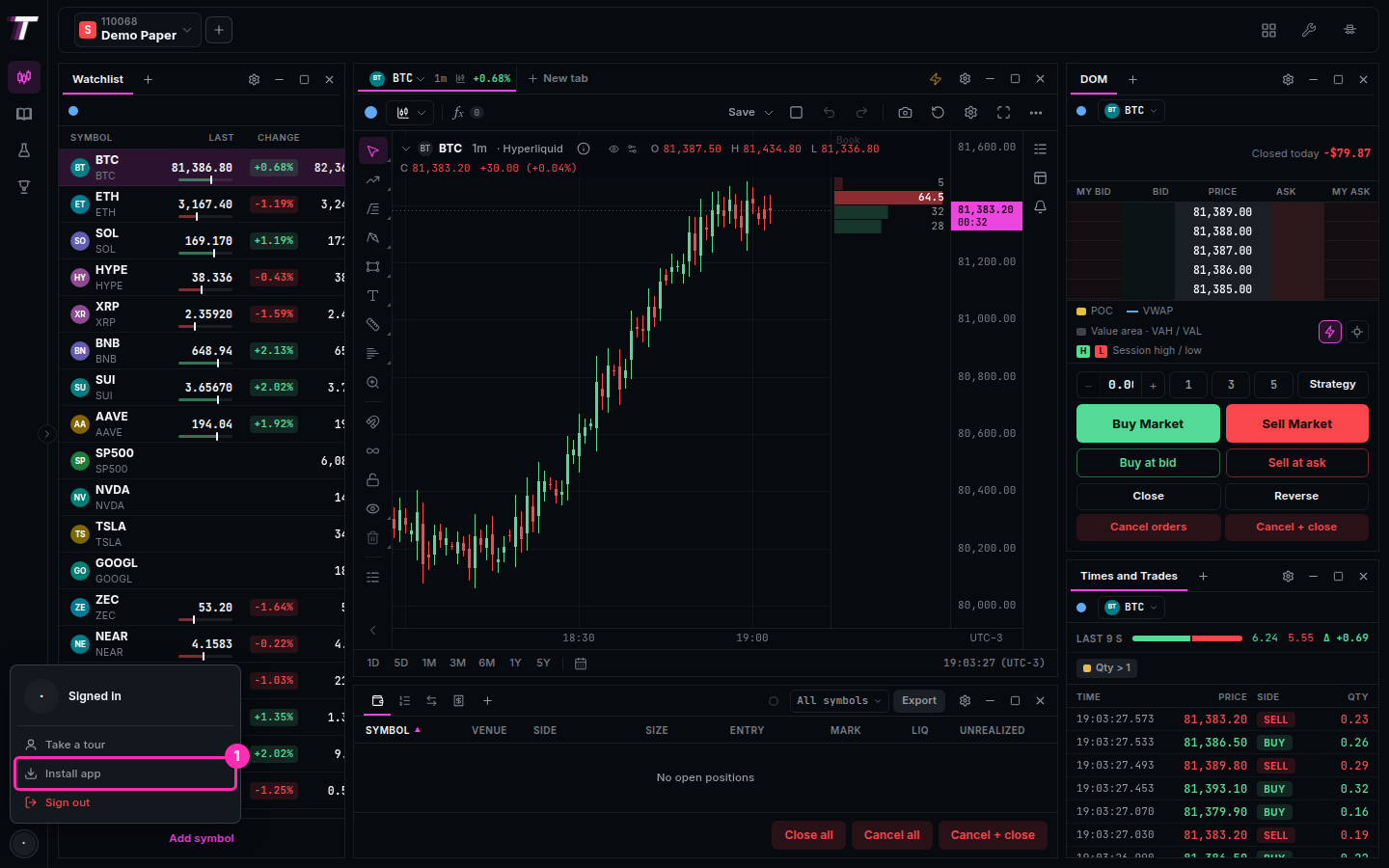
1 Install app item in the profile menu
Where to find it
- Desktop — click your avatar in the sidebar (or at the end of the header) and choose Install app. The item disappears once the app is installed.
- Phone — in the profile menu, the footer has an Install app button. Sometimes a floating invitation banner shows up too.
- iPhone and iPad — tap the browser's Share icon, then Add to Home Screen.
Install
- Open the platform in your browser and sign in.
- Use Install app and confirm in the browser window.
- Open the app from its new icon, on your desktop or home screen.
If the browser does not offer the install prompt, use its menu (⋮ > Install). The platform tells you when installation is not available at that moment.
Updates and connection
- New version available — when a new version is published, this notice appears with a Reload button. Reload to use the current version.
- You're offline — without internet, the app shell still opens, but data may be out of date until your connection returns. Prices and orders need a connection.
Tip: the installed app and the browser tab are the same platform. Your workspaces are saved on the device and do not sync to other devices.
Frequently asked questions
Is there an app for Windows or Mac? The Desktop app item in the sidebar opens the installers page for Windows and macOS. An installer that is not ready yet shows Coming soon; meanwhile, install the PWA from the browser.
Why is the Install app button missing? It does not show when the app is already installed. If the browser does not support installing, use the normal tab.
How do I update the installed app? When New version available appears, use Reload.