Interface tour
Get to know the areas of the Tron Charts screen on desktop: the sidebar, the header and the workspace where your tools live. For phones, see Mobile interface.
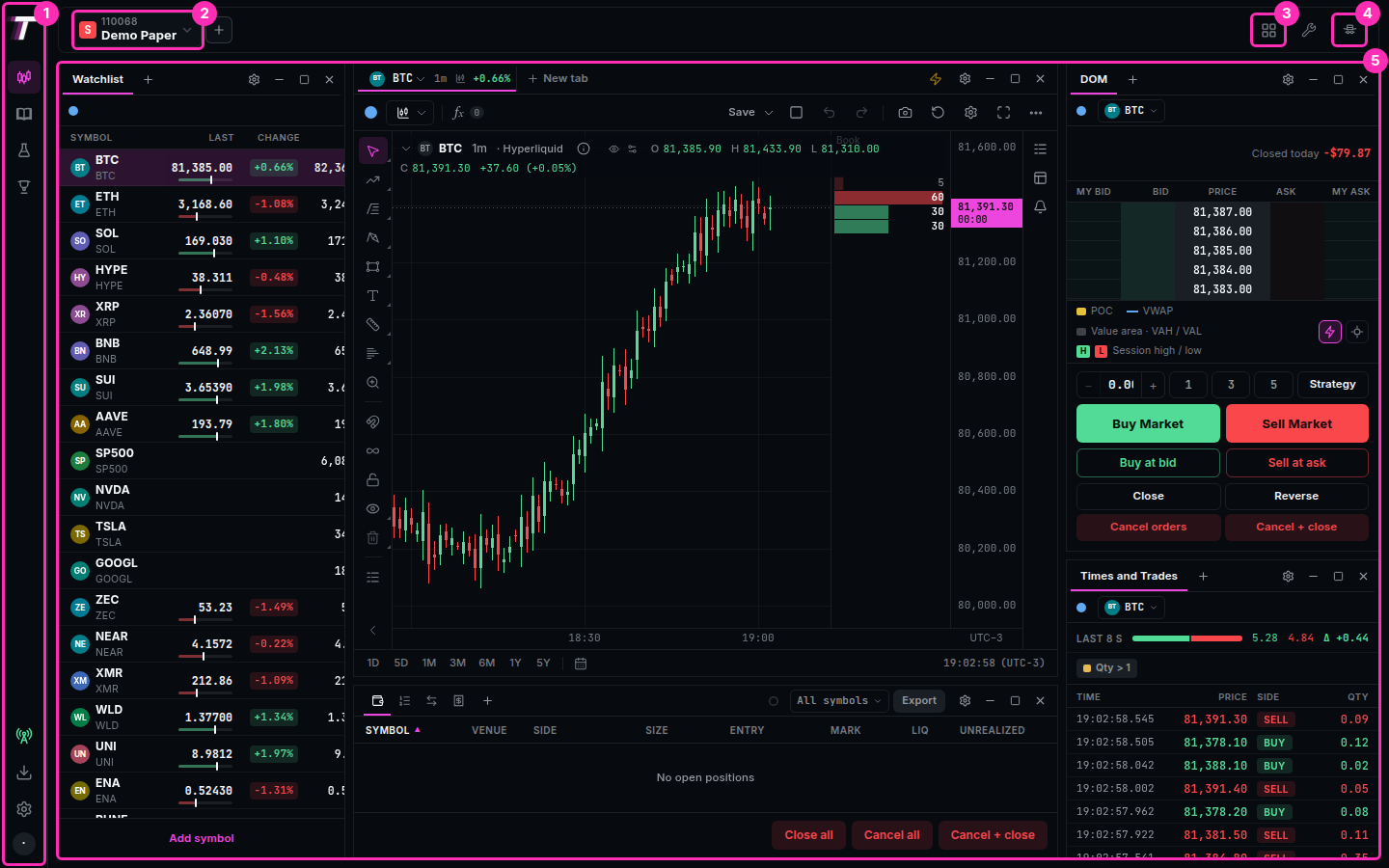
1 Sidebar · 2 Account selector · 3 Workspaces menu · 4 Jesse · 5 Workspace
Where to find it
The interface appears as soon as you open the platform. The menu arrangement changes in Settings > Appearance > Menu: Both fixed, Top fixed or Left fixed.
Sidebar
- Logo — click to collapse or expand the sidebar.
- Modules — Trade, Journal, Lab, Rewards and, depending on the operator, Funded, News and Copy. Items that need a login show "Sign in required" while you are signed out.
- Workspaces and Jesse — in Left fixed mode, which has no header, they move to the sidebar.
- Feed status — the antenna shows the data connection: connected, connecting, disconnected, error or stale. On error or stale, click it to retry.
- Desktop app — opens the page to download the desktop app.
- Settings and profile menu — the avatar opens Take a tour, Install app and Sign out.
Header
- Account switcher — shows the active account and its pinned stats. On Journal it shows Journal shows N and lets you tick which accounts the journal includes. See Trading accounts and the account switcher.
- Workspace menu — switch, rename, duplicate and create workspaces.
- Tools — adds a tool to the workspace; available on Trade.
- Jesse — the assistant icon, at the right edge.
- Get started — a button that appears in the header while you are signed out.
- Journal settings — on Journal, the settings button of the journal bar (tags, types, groups and rules).
Workspace
This is the central space, on Trade. Each tool (chart, DOM, positions, watchlist) lives in a window or pane that you move, resize and arrange. See Workspaces, panes and tools and Tools catalog.
Tip: type any letter, or use
Ctrl+K(⌘Kon Mac), to open search and jump straight to an asset, timeframe or indicator.
Frequently asked questions
Where is the home screen? On desktop, the home screen is the workspace itself on Trade. The home screen with an account summary exists on mobile; see Guided tour and home screen.
Why are some modules missing? Each operator turns on the modules it offers.