DOM (depth of market)
The DOM shows market depth as a ladder centered on the current price, and lets you send, move and cancel orders right on the price levels. It also shows your position, your P&L and the volume per level.
Where to find it
Add the tool from the tool picker (Add tool > DOM). In the tool's gear, Settings opens DOM Settings. See the Tools catalog.
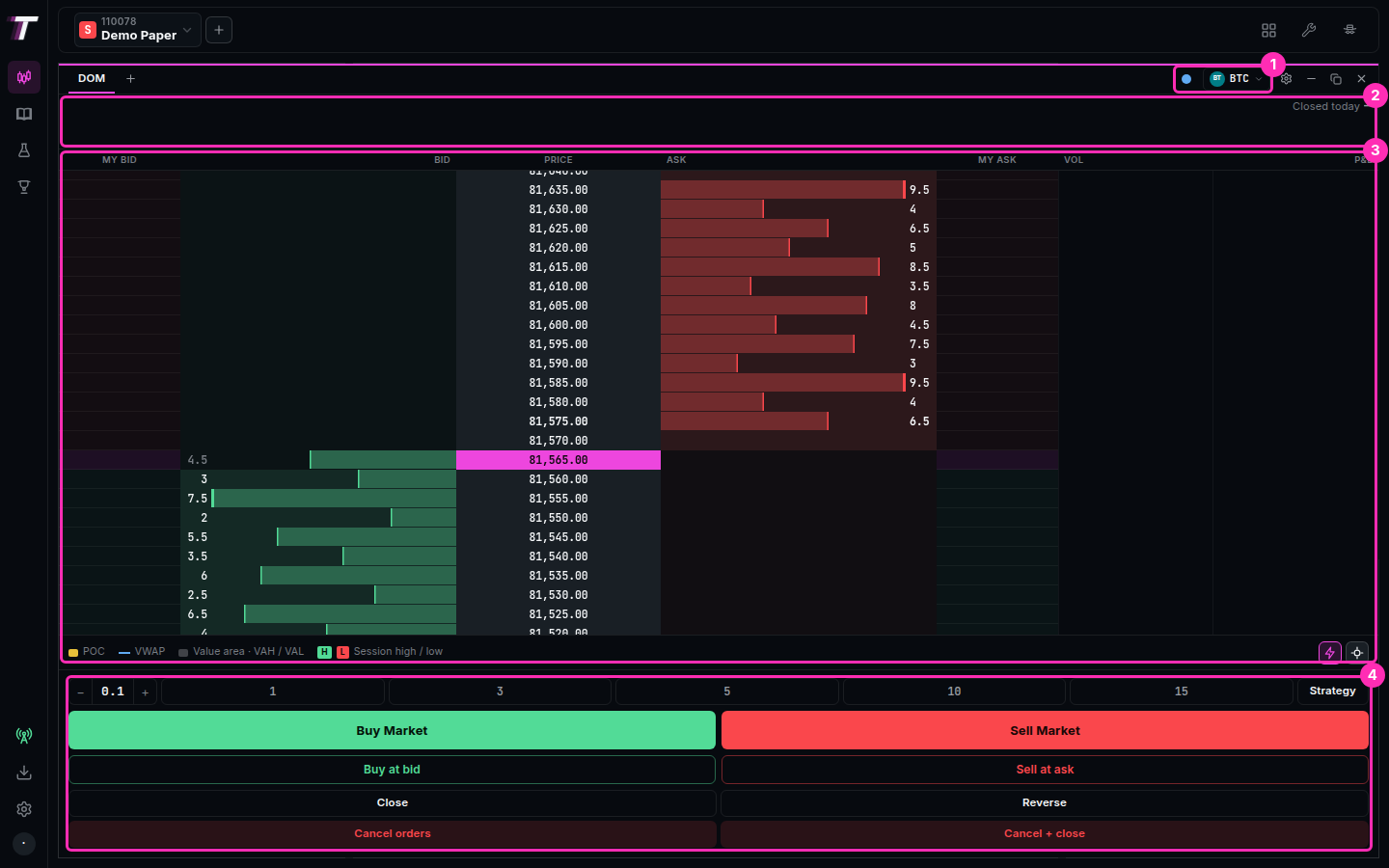
1 Link group and symbol · 2 Position strip (empty while flat) · 3 Price ladder · 4 Order footer
The columns
| Column | What it shows |
|---|---|
| My Bid | Your buy orders at that price (cards you can drag) |
| Bid | Resting buy quantity (bid) |
| Price | Price level; the current price is highlighted |
| Ask | Resting sell quantity (ask) |
| My Ask | Your sell orders at that price |
| P&L | Position result (optional) |
| Vol | Volume traded at the level (optional) |
| Ord | Number of resting orders at the level, on each side of the price; only where the venue sends it (optional) |
Above the columns sits the position strip: side and size (LONG or SHORT), avg price, open P&L in money and ticks, the Target and Stop lines, and Closed today (the result already closed in the day). Below the ladder, the legend explains the marks (Open P&L range, Risk to stop, POC, VWAP, Value area · VAH / VAL, Session high / low), next to the One-click trading switch and Centre on price.
Sending orders on the ladder
- One click — turn on One-click trading so that a click on My Bid or My Ask sends the order at that price. Holding the buy key (Shift by default) or the sell key (Alt by default) arms the same gesture only while it is pressed.
- Order type — a buy at or below the current price becomes a limit; above it, a stop. A sell follows the opposite rule.
- Quantity — the footer field has − and + buttons; under DOM Settings > Footer you set the Default quantities.
- Edit and move — double-click a card to edit its quantity; drag the card to another price to reprice; ✕ cancels the orders at that price.
- Position — your entry appears as an AVG tag at the average price. Drag it to create TP/SL; to close the position, use Close in the footer.
Action footer
The footer has the quantity (with − and +), the quick quantities and Strategy, the Buy Market and Sell Market buttons (with Price card in the footer on, pinning a price turns them into limits), Buy at bid and Sell at ask (join the best bid/ask), Close, Reverse, Cancel orders and Cancel + close. With Confirm before sending on and One-click trading off, the first click arms the button (Confirm?) and the second one sends; with One-click trading on, the first click sends.
DOM Settings
| Tab | Main options |
|---|---|
| General | DOM version, Keep price centered, Follow price, Aggregate tick size, Depth bars, Buy/sell side shading, Highlight last price, Session high/low, Show Volume, Show order counts, Show P&L, Confirm before sending, One-click trading |
| Colors | Bid, ask, last price and session high/low colors (Automatic follows the theme) |
| Quantity | Coloring rules by quantity (per price or per offer) |
| Footer | Trade strip (DOM Strip or SIMPLE Strip), Price card in the footer, Show quantity buttons, Default quantities, Show action buttons and Footer buttons |
Important: if the window shows an account other than the active one, orders are turned off there. Activate the displayed account or go back to the active one. See Trading accounts and switcher.
Availability: the "Super DOM", with per-price buttons, depends on your platform/operator. See Super DOM.
Frequently asked questions
Why did the ladder stop moving? With Follow price off the ladder stays static. Use Centre on price to return to the market.
Why did my click not send the order? Without One-click trading or the buy/sell key pressed, a click does not send an order.