TradingView Charts
TradingView Charts is the default chart in Tron Charts: the embedded TradingView Advanced Charts, fed by the Tron datafeed. You use the TradingView drawing sidebar, indicator dialog and study templates, and you can also trade straight from the chart.
Where to find it
Add the TradingView Charts tool from the workspace tool picker (see the Tools catalog). The top toolbar above the chart carries the interval, the chart type, Indicators, Indicator templates, Save (with Manage layouts), Settings, Take a snapshot and Reset chart layout. In the pane header, the gear (Tool options) has Settings, which opens Chart settings. A Symbol info strip can also be turned on in the Visibility tab of Chart settings.
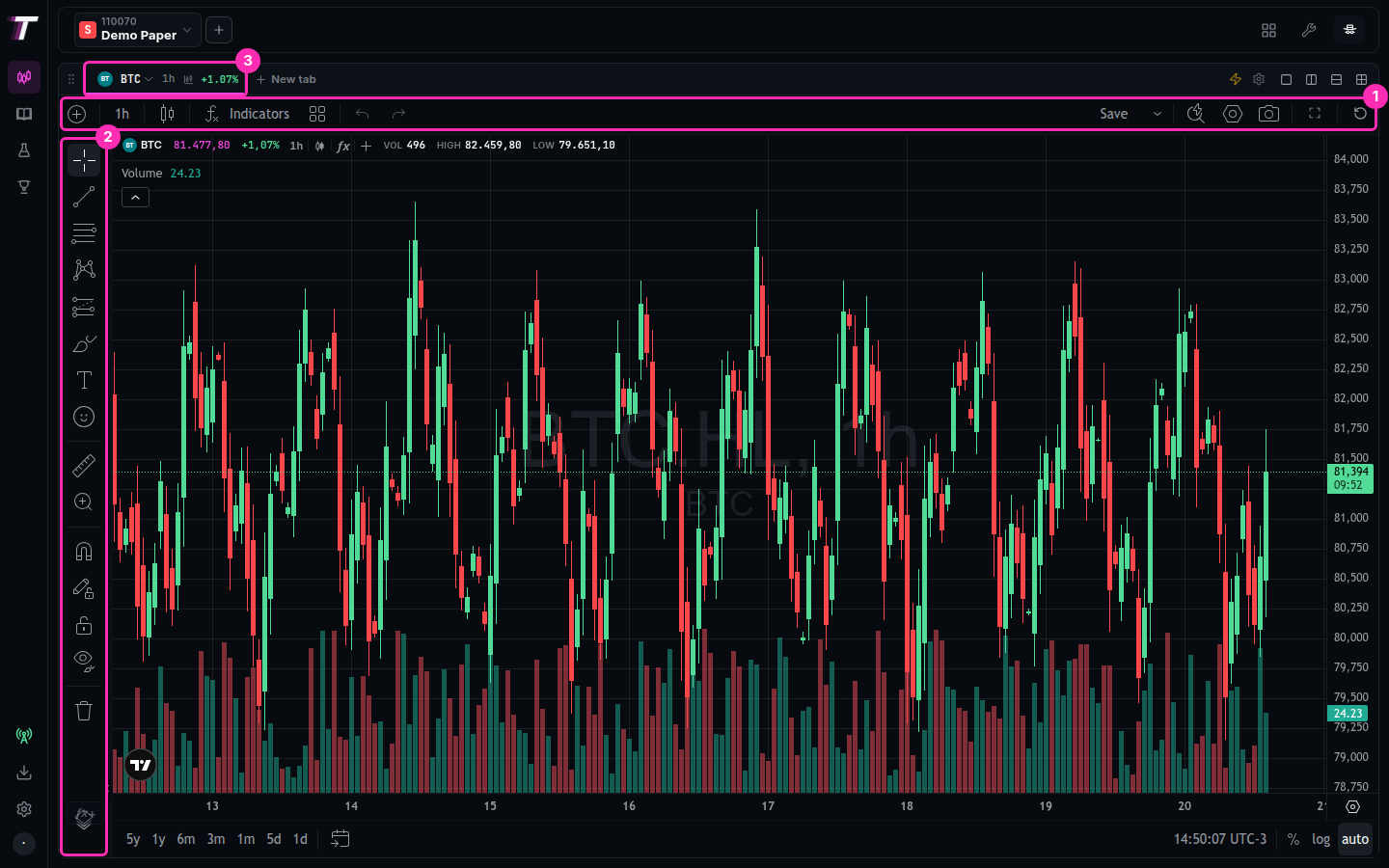
1 Top toolbar · 2 Drawing sidebar · 3 Chart tab
What you get on the chart
- Native drawings and indicators — the full TradingView palette is available. We do not list them one by one; use the sidebar and the Indicators dialog. See Drawing tools and Indicators overview.
- Chart types — candles, bars, lines, areas and variations. See Chart types.
- Intervals — 13 built in, plus custom intervals. See Timeframes and custom resolutions.
- Study templates — bundles of indicators you save and reapply.
- Candle countdown — the time left until the current candle closes is shown on the chart.
- Trading from the chart — orders, positions and brackets appear as lines on the chart. See Chart trading.
- Event marks — liquidations and funding received or paid are marked on the candles.
Time zone and language
Chart time is fixed to America/Sao_Paulo and does not change in settings. TradingView's own menus and texts appear in English, whatever language Tron is set to.
Autosave
The chart layout (drawings, indicators, panes) is saved automatically to your account and comes back when you reopen. See Layout autosave and reset.
Frequently asked questions
How is it different from Super Charts? Super Charts is Tron's own chart, in beta, that runs alongside this one and does not replace it. See Super Charts overview.
Can I have several charts? Yes: chart tabs and layouts of 2 or 4 charts. See Chart tabs and multichart layouts.
The chart does not load or is delayed. See Chart not loading or delayed.