Drawing tools
On the TradingView chart you mark levels, trends and annotations with TradingView's native drawing palette. Drawings are saved with the chart layout.
Where to find it
Use the left sidebar of the TradingView Charts tool. If it is hidden, open Chart settings, Visibility tab, and clear Hide sidebar. On mobile, the sidebar starts hidden.
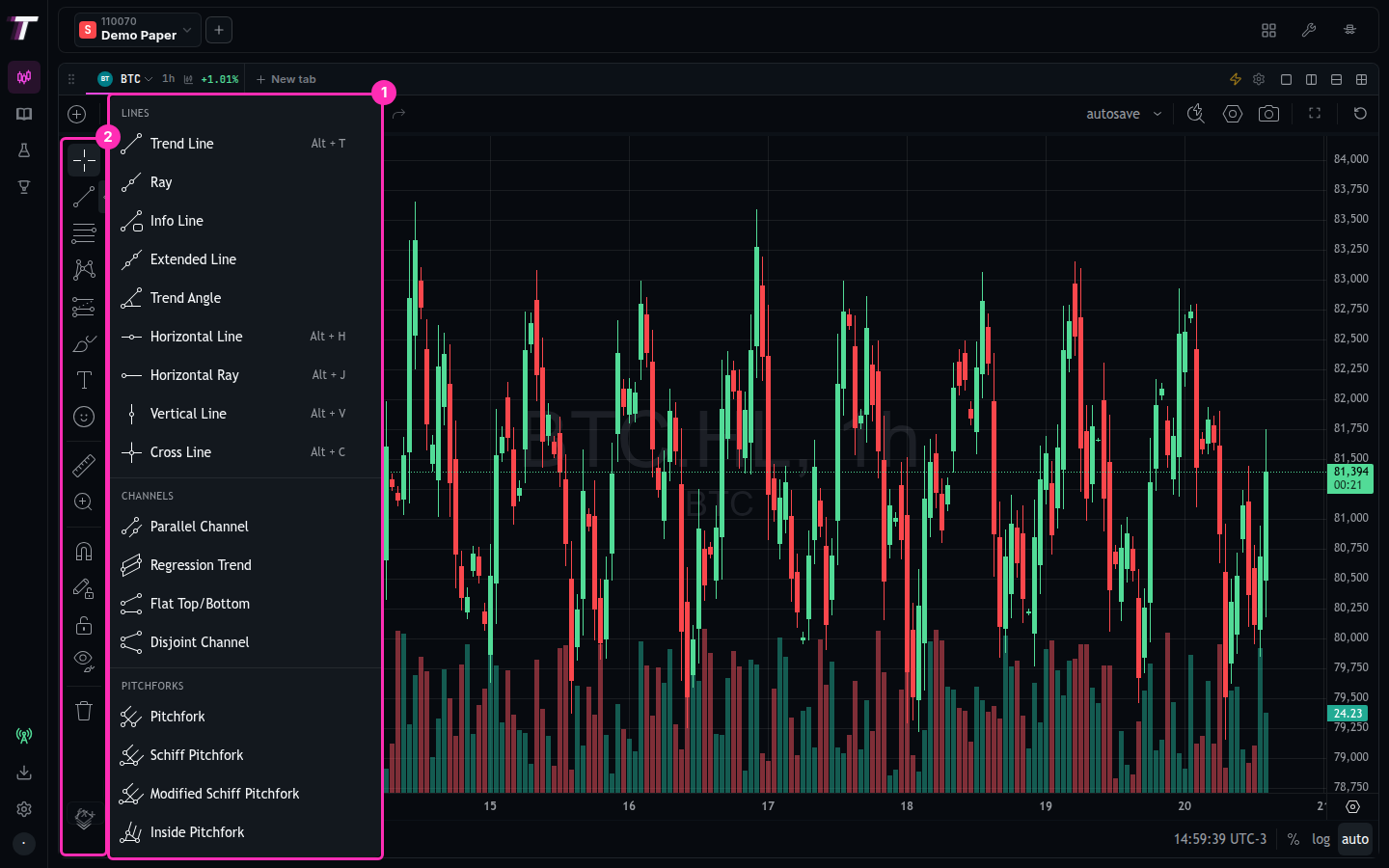
1 Tool group open · 2 Drawing sidebar
How to draw
- Click a tool in the sidebar.
- Click on the chart to place the points of the drawing.
- Click the drawing to select it and adjust color, thickness and style in the floating bar.
- To remove it, select the drawing and use the remove option of the floating bar or the Delete key.
The palette (lines, Fibonacci, shapes, annotations, measures and more) is TradingView's own and is not listed here item by item. Names and menus appear in English.
What is saved
- Chart drawings — they go with the layout, in your account, and come back when you reopen the chart. See Layout autosave and reset.
- Drawing templates — per-tool style presets you save in TradingView stay in your account.
- Chart and study templates — chart-wide visual themes and indicator bundles also stay in your account.
Tip: if the chart gets cluttered, use Reset chart layout to go back to the default. Your orders and positions do not change.
Frequently asked questions
My drawings are gone on another device. Drawings live in your account, not in the browser, and should appear on any device where you sign in. If they do not, reload the chart.
What about Super Charts drawings? Super Charts has its own, smaller set. See Super Charts drawing tools.
Do drawings move with zoom? Yes, they stay anchored to the prices and times where you placed them.