Layout autosave and reset
The TradingView chart saves its layout on its own (drawings, indicators, panes and scales). If you refresh the page or come back another day, the chart reappears as you left it. If you want a fresh start, there is a reset button.
Where to find it
The Reset chart layout button is in the header of the TradingView Charts tool. It only shows when the chart's native header is visible (the header is off on mobile). Autosave has no button: it happens in the background.
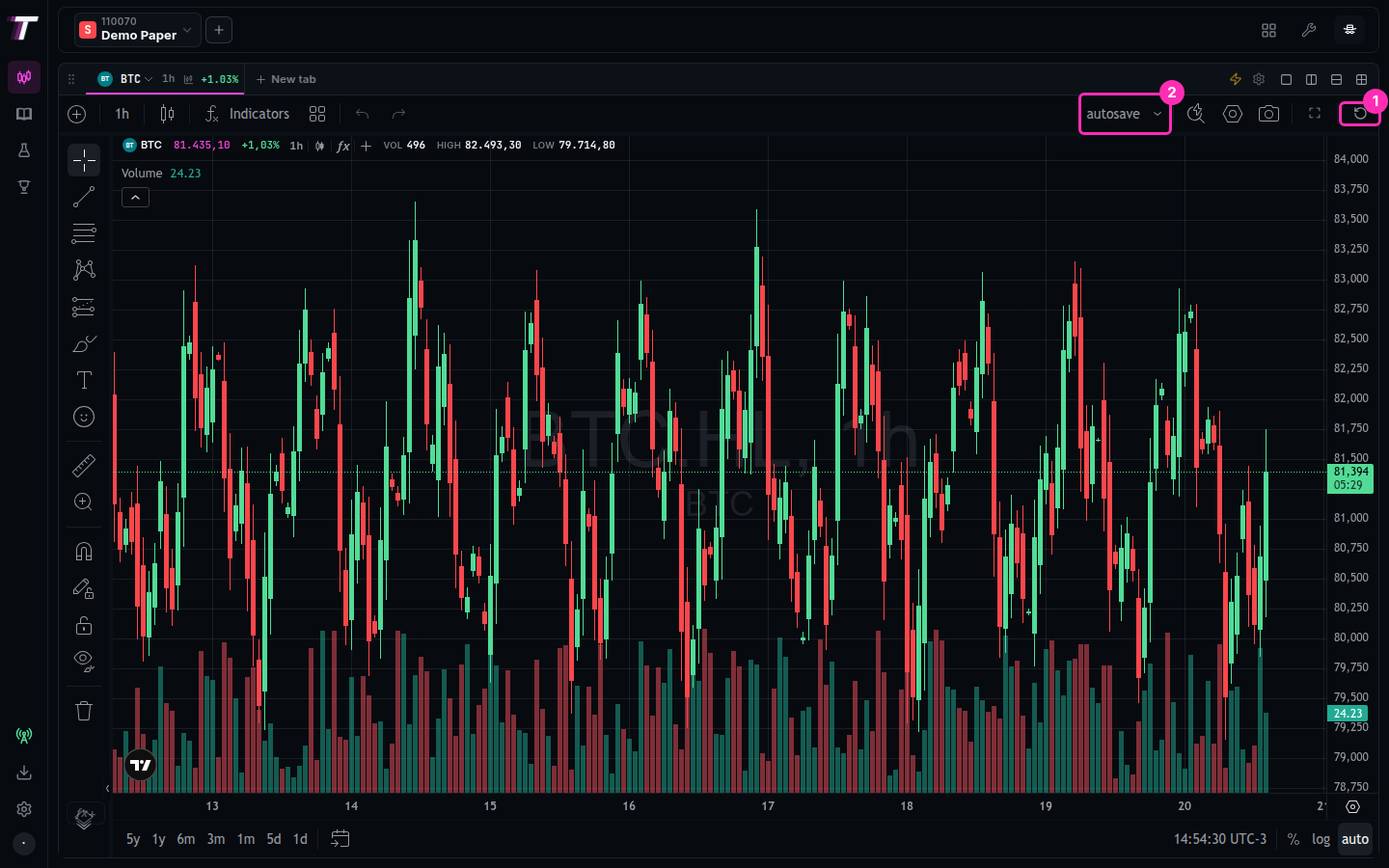
1 Reset chart layout · 2 Autosave indicator
What is saved
- Chart layout — drawings, indicators and panes.
- Study templates — named bundles of indicators.
- Drawing templates — preset styles per tool.
- Chart templates — visual themes for the whole chart.
All of this lives in your account, not in the browser. That is why clearing the browser cache does not erase the layout, and it can show up on another device where you sign in.
Saving happens a few seconds after each change.
How to reset
- Click Reset chart layout.
- Read the warning: "Reset this chart's layout? Drawings, scales and styling on this tab go back to default. Your orders and positions are not affected."
- Confirm.
The reset only applies to the current tab. Open orders and positions stay exactly as they were.
Super Charts
Super Charts keeps the state of each tab (asset, interval, chart type, indicators and drawings) with the workspace, on the device you are using. See Super Charts overview.
Frequently asked questions
Does reset delete my orders? No. Only the tab's drawings, scales and styling.
The chart does not restore my layout. Reload the page. If it persists, see Chart not loading or delayed.
Can I undo a reset? No. Save a study or chart template first if you want to keep a setup.