Chart tabs and multichart layouts
You can follow several assets at once with chart tabs inside a pane and with layouts that split the pane into 2 or 4 charts. This applies to the TradingView chart.
Where to find it
The header of the TradingView Charts tool pane carries the chart tabs, the New tab button (New chart tab) and the Chart layout buttons.
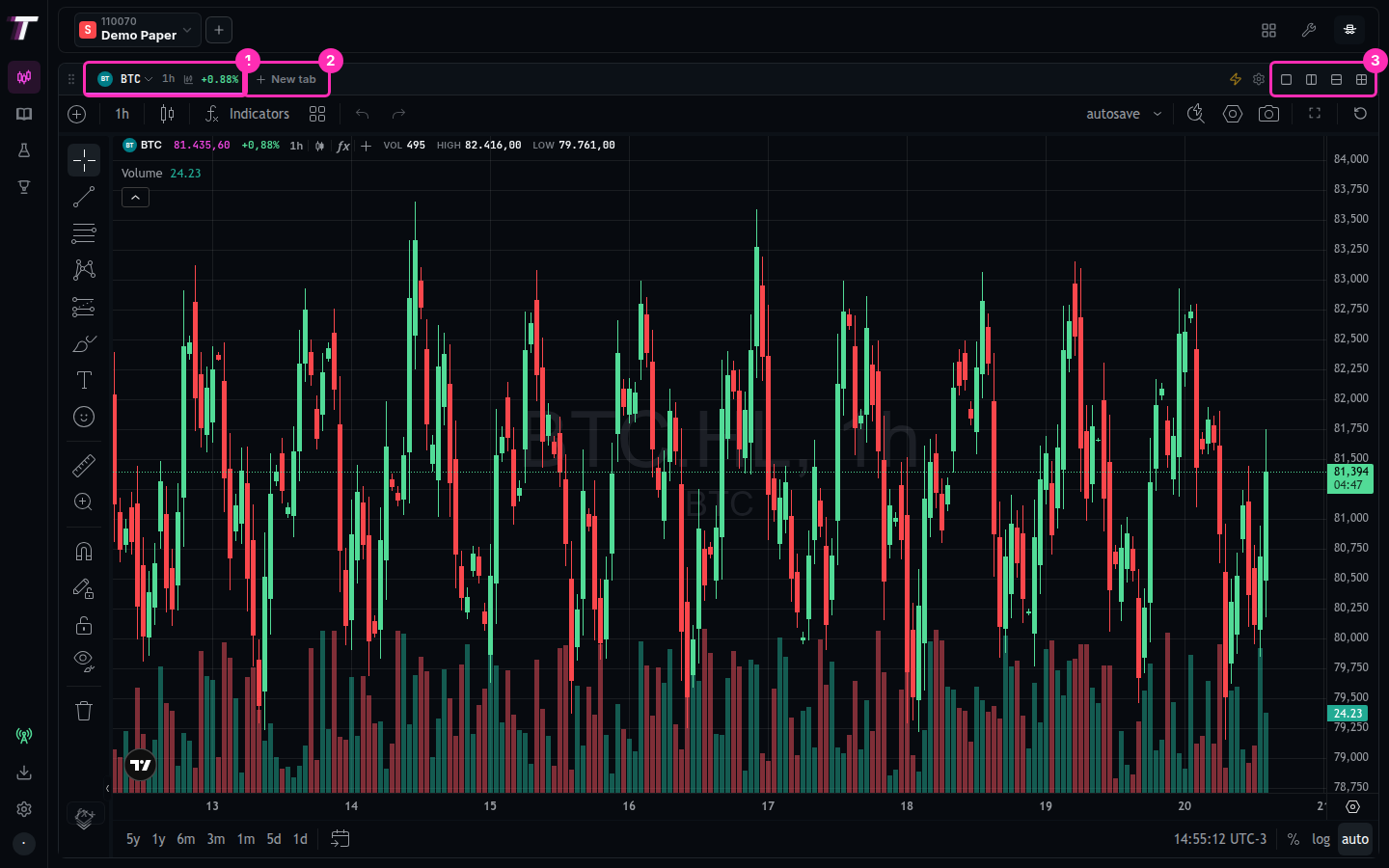
1 Chart tab · 2 New tab · 3 Single, 2 side by side, 2 stacked and 2×2 layouts
Chart tabs
- Add — click New tab. Each tab has its own asset, interval and layout.
- Change asset or interval — click the tab to change the symbol (or start typing on the chart); the interval is on the chart's top toolbar.
- Tab menu — right-click a tab for Change symbol…, Duplicate tab, New tab, Close tab or Close other tabs.
- Limit — Max 10 charts per workspace. At the limit, the split buttons are disabled; when the tool holds all the tabs it can, New tab says "This Tool has all the tabs it can hold".
Multichart layouts
The Chart layout button splits the current pane into side-by-side charts:
| Option | Result |
|---|---|
| Single | One chart. |
| 2-up | Two charts. |
| 2-side | Two charts, one above the other. |
| 2×2 | Four charts. |
A layout can only be applied if it fits within the limit of 10 charts per workspace. Use Collapse to shrink the pane.
Sync symbol and interval
To make every chart follow the same asset and interval, check Sync symbol and Sync interval in Edit layout or when creating a New workspace (the Layout Sync block). Sync applies per workspace. See Workspaces, panes and tools.
Hide toolbars
In Chart settings, Visibility tab, the Toolbars section offers Hide sidebar, Hide top toolbar and Hide bottom toolbar to gain space.
Frequently asked questions
Does Super Charts also split the screen? No. A Super Charts tool shows one chart per tab; its Layout menu has saved chart layouts and the sync options. See Super Charts overview.
Why is the layout button disabled? The workspace already holds the most charts it can (10). Close tabs or charts to free room.