Chart settings
Chart settings control how the TradingView chart shows your trading, which bars are visible and how the trade strip behaves. Super Charts settings live elsewhere: see Super Charts settings.
Where to find it
In the TradingView Charts tool, click the gear in the pane header (Tool options) and choose Settings; the Chart settings window opens. The window has the General, Visibility and Flash tabs. Click Done to close it.
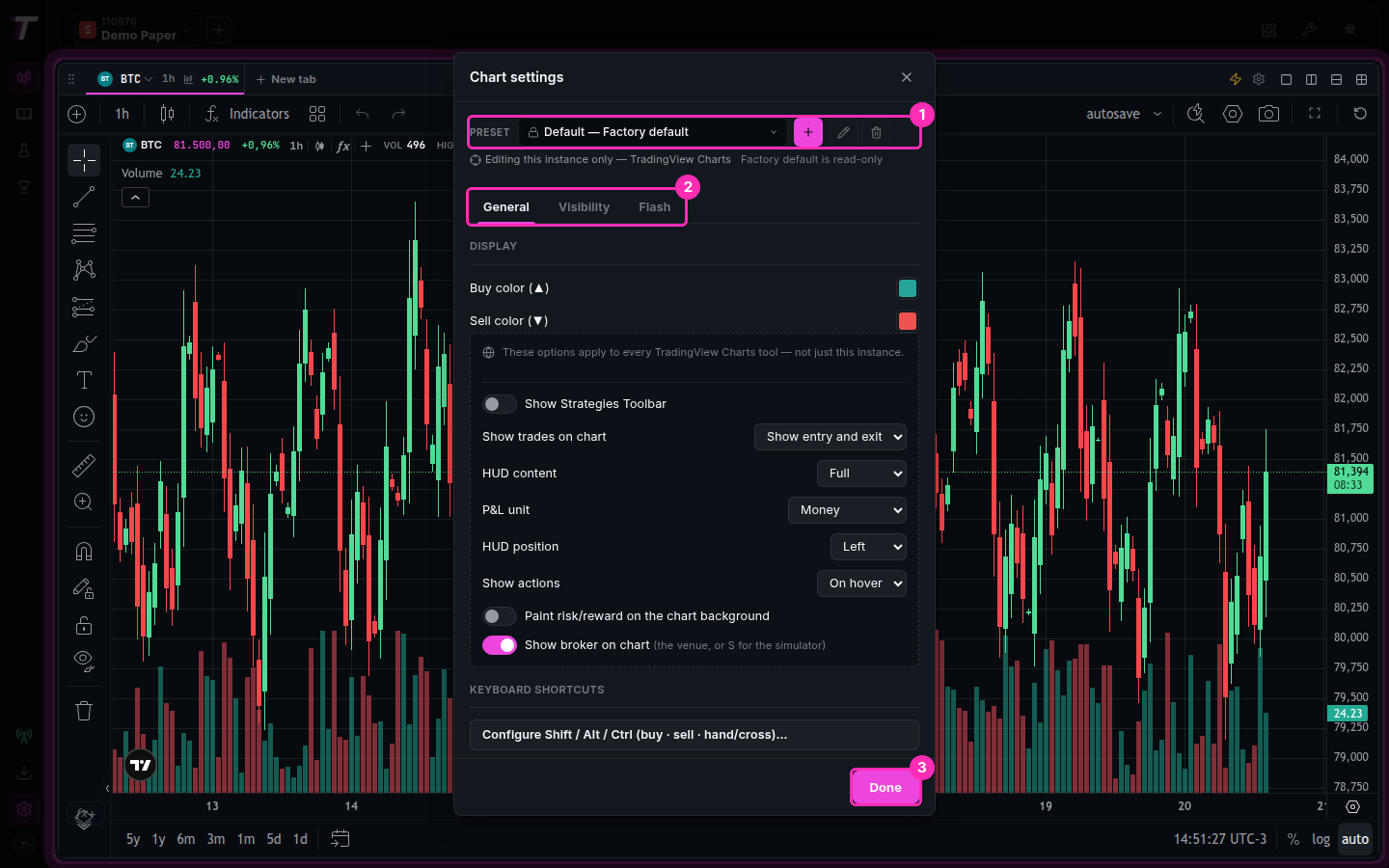
1 Presets · 2 General, Visibility and Flash tabs · 3 Done
General tab
| Option | What it does |
|---|---|
| Show Strategies Toolbar | Shows the FA, CA and CF risk shortcuts in the chart header (flatten all positions, cancel all orders, cancel then flatten). Off by default. |
| Show trades on chart | Don't show, Show entry or Show entry and exit. Colors are set in Buy color (▲) and Sell color (▼). |
| HUD content | How much the position, TP and SL cards show: Full, Compact or Minimal. |
| P&L unit | Unit of the result on the cards: Money, Ticks, % or Money + ticks. |
| HUD position | Left, Centre or Right. |
| Show actions | The card buttons show On hover or Always. |
| Paint risk/reward on the chart background | Paints the position's risk and reward range on the chart background. |
| Show broker on chart | Shows the venue on the chart (or S for the simulator). |
| Trade strip model | DOM Strip, SIMPLE Strip or Custom, plus Show OP&L on trade strip, Show CP&L on trade strip and Show position on trade strip. |
| Keyboard shortcuts | The Configure Shift / Alt / Ctrl (buy · sell · hand/cross)… link opens the shortcut setup. |
Paint risk/reward and Show broker apply to every TradingView Charts tool, not only the current one.
Visibility tab
Controls the symbol strip and the TradingView bars. Symbol strip turns on the Symbol info strip and picks its fields (Symbol, Last, Change, Time, Volume, Trades, High, Low, Funding, OI, Premium). Toolbars has Hide sidebar, Hide top toolbar and Hide bottom toolbar.
Flash tab
Holds the chart's Flash bar settings. See Flash scalper bar.
Presets
At the top of the window, the preset bar stores sets of settings:
- Default — the factory default, read-only.
- My preset — keeps the settings you had before presets existed.
- Save, Save as new, Rename and Delete — to create and manage your own presets. Delete asks for confirmation and cannot be undone.
Frequently asked questions
Why do I not see my trades on the chart? Check that Show trades on chart is not set to Don't show.
Why is the strategies bar (FA, CA, CF) missing? It is off by default. Turn on Show Strategies Toolbar in the General tab.