Custom indicator builder
The builder lets you assemble your own indicator from a price source, an operation and its parameters, with no code. The indicator you create appears on the TradingView chart next to the native indicators.
Availability: the Create custom indicator button sits on the TradingView trading chart. It does not appear on read-only (embedded) charts.
Where to find it
The builder is called Create custom indicator and has two tabs: Create and My indicators. Your saved indicators appear in the TradingView chart's Indicators dialog.
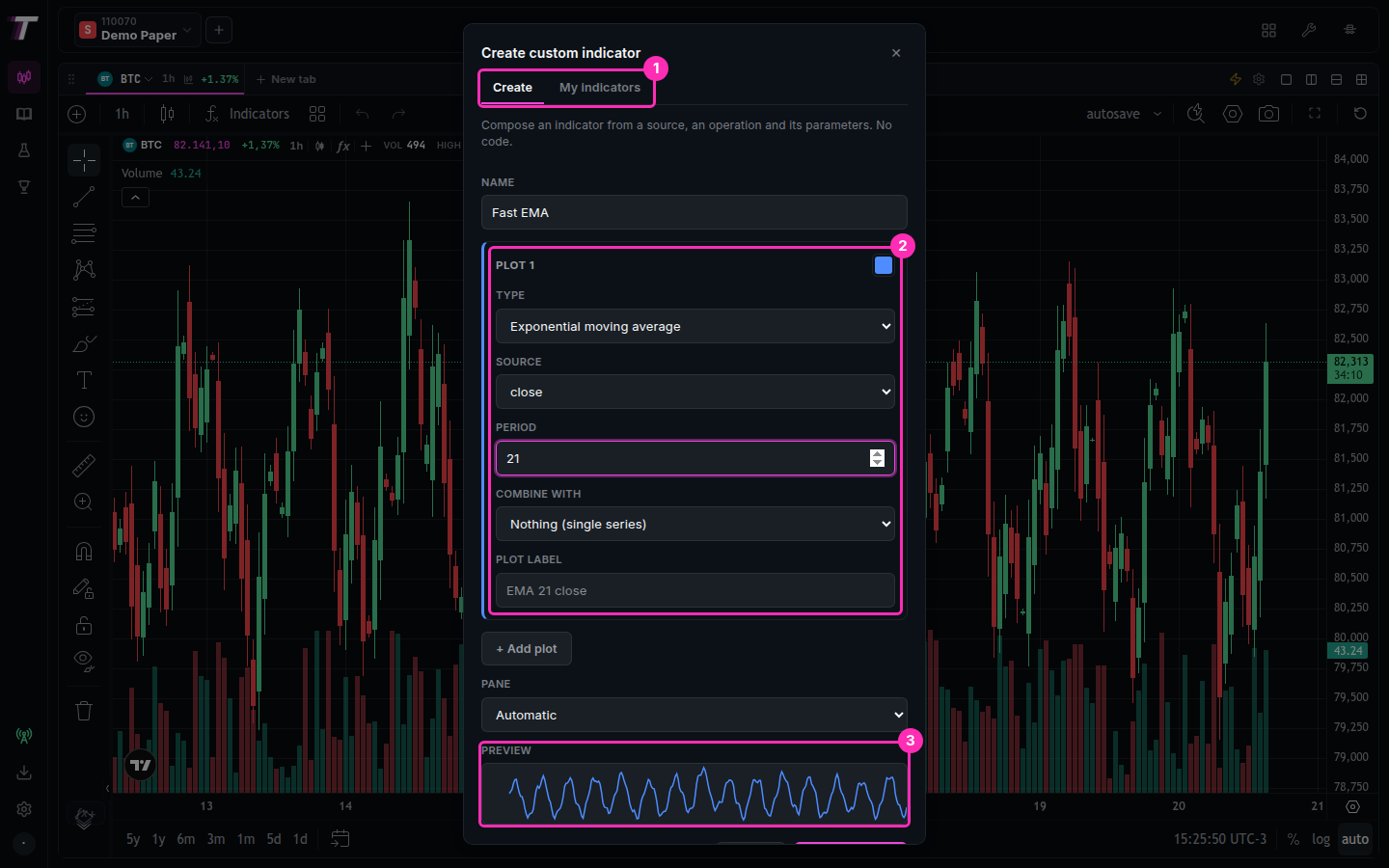
1 Create and My indicators tabs · 2 Plot 1 · 3 Preview
Create tab
- Type the Name (up to 64 characters, not repeating a name you already have).
- In Type, choose the operation:
| Operation | Parameters |
|---|---|
| Simple moving average | Source, Period |
| Exponential moving average | Source, Period |
| Relative strength index (RSI) | Source, Period |
| MACD | Source, Fast length, Slow length, Signal length and Output |
| Bollinger Bands | Source, Period, Std deviation and Output |
| Price source | Source |
| Constant line | Value |
- In Color, pick the line color and, if you want, a Plot label.
- In Pane, choose Automatic, On price (overlay) or Separate pane.
- Check the Preview and click Save indicator.
For MACD, the fast length must be smaller than the slow one.
Several plots and combinations
Use Add plot (up to 3 plots) and Remove plot to build an indicator with more than one series. Combine with joins two series with A + B, A − B, A × B, A ÷ B or abs(A − B); the Second series (B) has the same parameters. Nothing (single series) turns the combination off.
Manage
In the My indicators tab you can Edit, Rename and Delete (with a Confirm? step). Indicators made from an advanced spec can only be renamed or deleted.
Frequently asked questions
"Indicators service unavailable" appears. Indicators cannot be saved right now; the built-in example stays in the Indicators dialog. Try again later.
Does it work in Super Charts? No. Super Charts has its own indicator list.