Two-factor authentication
Two-factor authentication (2FA) uses an authenticator app to generate 6-digit codes. It is an extra security layer you can turn on for your account.
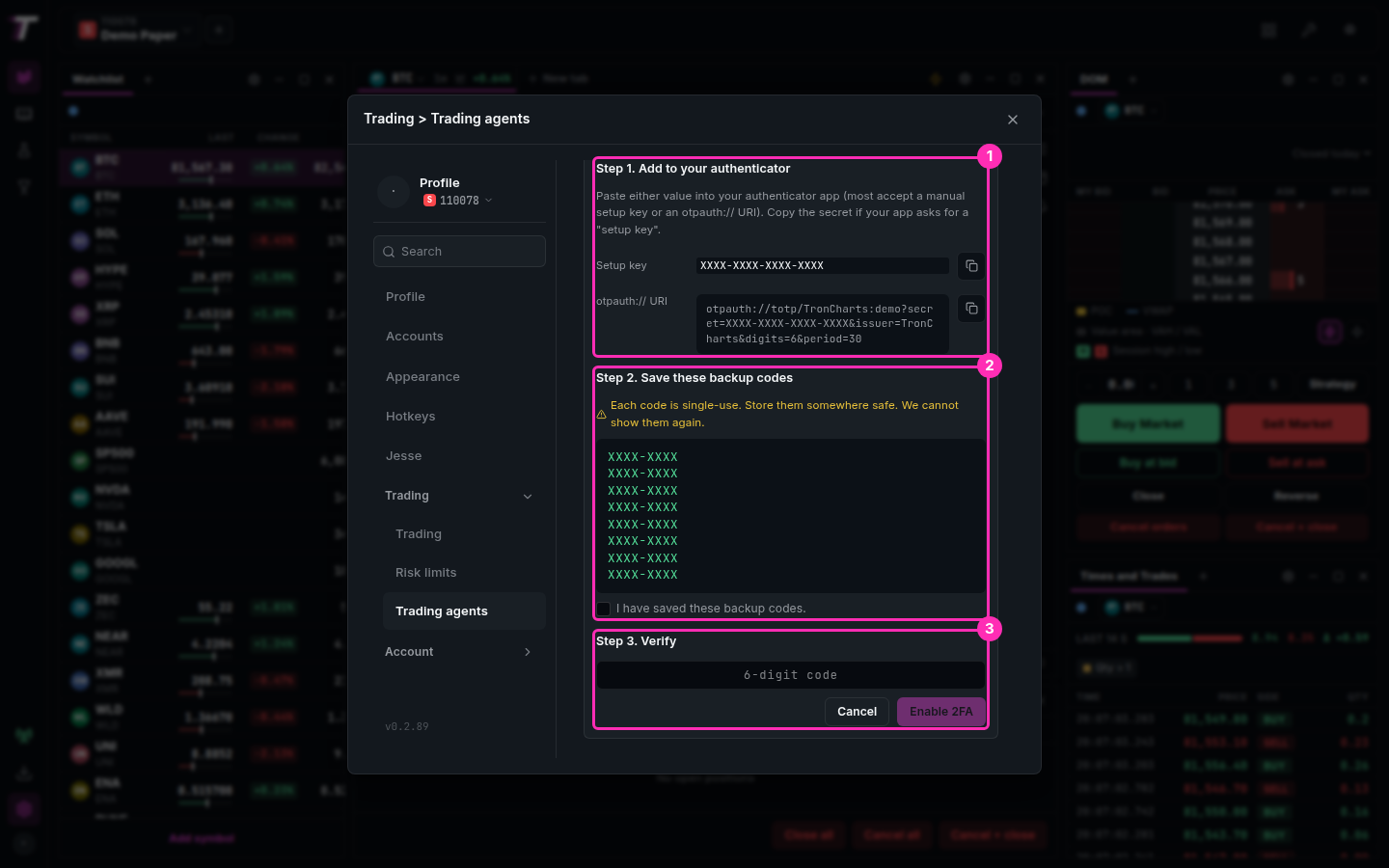
1 Step 1: setup key · 2 Step 2: backup codes · 3 Step 3: verify
Where to find it
Settings > Trading > Trading agents, in the Two-factor authentication section. In Settings > Account > Wallets & security, the Manage in Trading agents button takes you straight there.
Turn it on
- Step 1. Add to your authenticator. Copy the Setup key or the otpauth:// URI and paste it into your app (Google Authenticator, Authy, 1Password and the like).
- Step 2. Save these backup codes. There are 8 codes, each single-use. Keep them somewhere safe: they are not shown again. Tick I have saved these backup codes.
- Step 3. Verify. Enter the 6-digit code from the app and click Enable 2FA.
Once active, the section shows Enabled, the date under Since, the Last verified time and the Backup codes left.
Where 2FA is asked for
2FA is not asked at sign-in: signing in is still by wallet or email. Withdrawals, transfers and redemptions no longer require a 2FA code.
Important: some screens still carry the old text saying 2FA is needed to confirm withdrawals. That requirement was removed; a 2FA code is not asked for those operations.
Turn it off
Under Disable 2FA, enter your current 6-digit code or an 8-character backup code and click Disable.
Frequently asked questions
I lost access to my authenticator app. Use one of your backup codes to turn 2FA off and set up another authenticator. If you lost the codes too, talk to support: Contact support.
How many times does a backup code work? Once. Track how many remain under Backup codes left.
Does 2FA protect my account from an unwanted sign-in? No, signing in does not ask for the code. Also protect your wallet and your email.