Export history and reset a paper account
You can download the positions, orders and trades tables and, on a paper account, clear everything to start over. They are two separate actions: exporting changes nothing, and resetting cannot be undone.
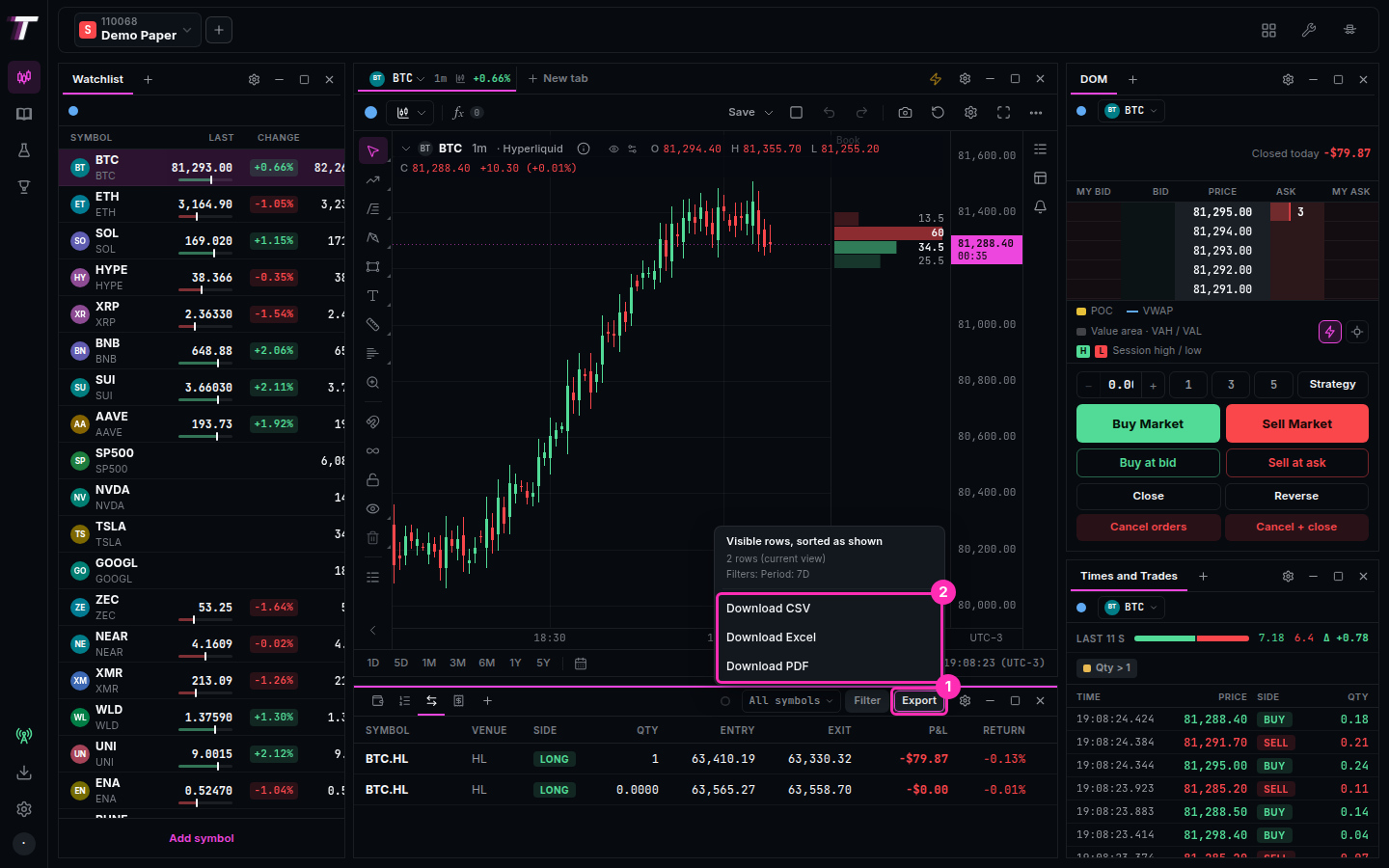
1 Export table button · 2 CSV, Excel and PDF options
Where to find it
- Export — the Export button on the Positions, Orders and Trades tools.
- Reset — Settings > Account > Reset paper account.
Export a table
- Open the tool (Positions, Orders or Trades) and adjust the period and filters.
- Click Export.
- Choose Download CSV (opens in any spreadsheet), Download Excel (formatted spreadsheet) or Download PDF (statement ready to print or share).
The file contains the visible rows, in the order shown. The menu shows how many rows will be exported and which filters are active.
Important: an export can be partial. When a row limit applies, the notice Partial export — not a complete record appears. Adjust the period to cover the history you need. With an empty table you see Nothing to export — the table is empty.
In Settings > Account, the Export trade history (CSV) row shows a disabled Export button; to export, use the tables as described above.
Reset a paper account
The reset only shows when the active account is a paper account.
- Make active the paper account you want to clear.
- Open Settings > Account and click Reset under Reset paper account.
- Click Confirm reset (or Cancel).
The platform cancels orders, flattens positions, clears the account state and puts the balance back at 100,000 USD. At the end you see Reset complete.
Important: a reset cannot be undone. Export anything you want to keep first.
Frequently asked questions
Does the reset affect real accounts? No. It only exists for paper accounts.
Can I export the history of an account that is not active? The tables show the active account. Switch accounts before exporting.