The app is not updating
Tron Charts is a web app that can be installed as a PWA. It tells you when a new version is available and asks you to reload. This article helps when you keep seeing an old version or something looks broken after an update.
Symptom
- The New version available notice appears: on a computer, in the bottom-left corner of the screen; on a phone, as a bar with Reload.
- A new screen or tool does not show up, or an error disappears only in another browser.
- The installed app opens with a different version from the one the browser shows.
- The app shows You're offline and does not load changes.
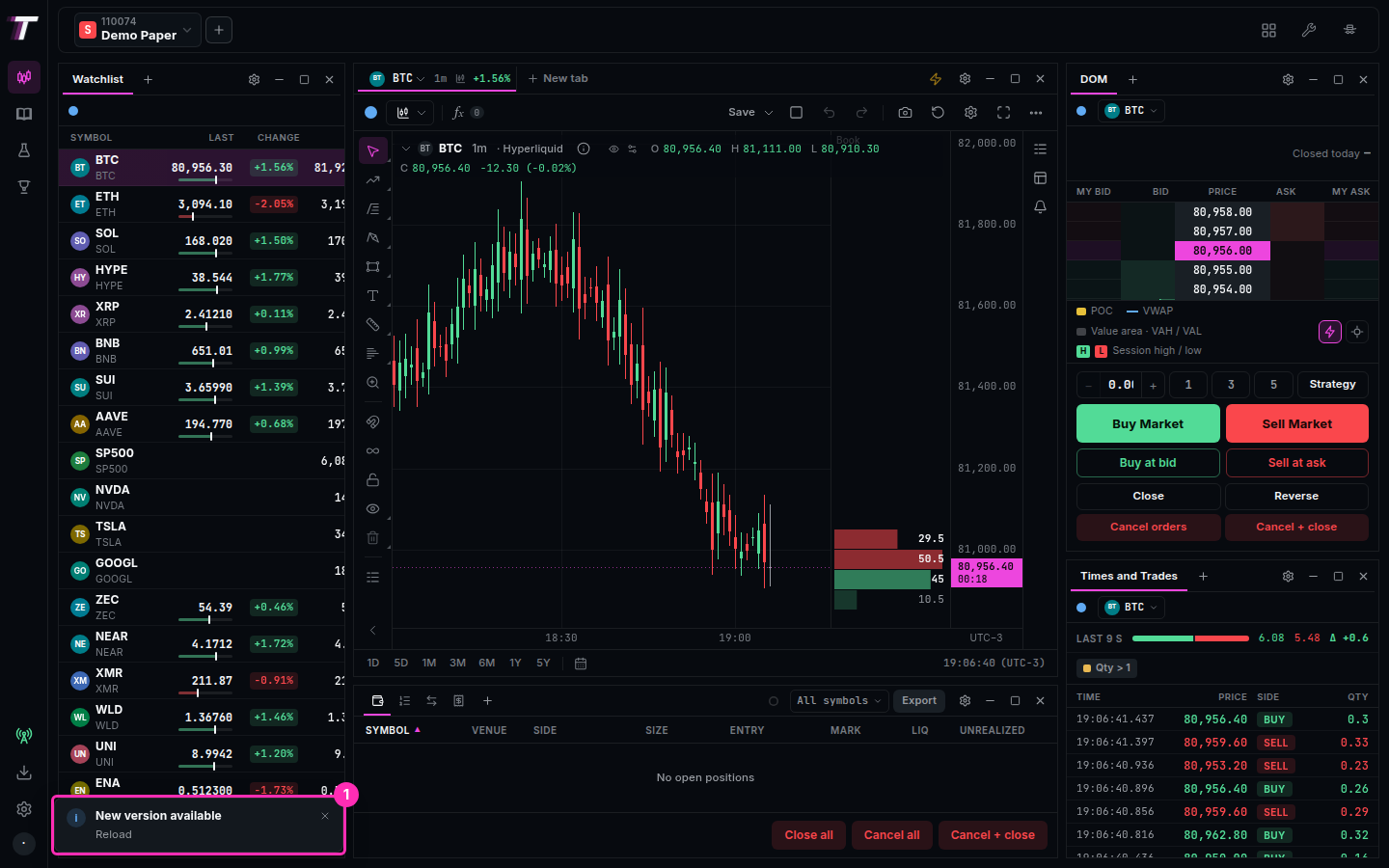
1 New version available notice
Likely causes
- Update ready but not applied — the app downloaded the new version and waits for you to reload.
- Tab or app open for a long time — the old version keeps running until you reload.
- Browser or service worker cache — an old file stayed cached.
- No connection — without internet, the app cannot fetch the new version.
What to do
- On a computer, reload the page (F5 or the browser's reload button) when New version available appears; the notice stays on screen until you do. On a phone, tap Reload on the notice.
- With no notice, reload the page with a hard reload (Ctrl+Shift+R on Windows and Linux, Cmd+Shift+R on Mac).
- In the installed app, close it completely and open it again. On iPhone and iPad, installation is done with Add to Home Screen; close the app from the app switcher.
- If it persists, clear the site data in the browser settings and sign in again.
- If it still stays on the old version, remove the installed app and install it again. See Install the app (PWA).
Important: clearing site data erases what the app stores on this device, such as workspaces and personal risk limits. Note your layout before clearing.
When to contact support
- The app stays on an old version after clearing data and reinstalling.
- The New version available notice keeps reappearing after reloading.
- An error appears only after an update and disappears in another browser.
Give the browser, the operating system and a screenshot. See Contacting support.