Notes, tags and attachments
Notes, tags and attachments turn Journal trades into context you can review later: what you expected, what happened and what changes next time.
Where to find it
In the Journal, the Notes and Note templates tools (add them with Add a tool, or use the Notebook template). Tags, tag types, tag groups and rules are in Journal settings, the gear at the end of the strip. Notes also appear in Day notes and in each trade's Trade review.
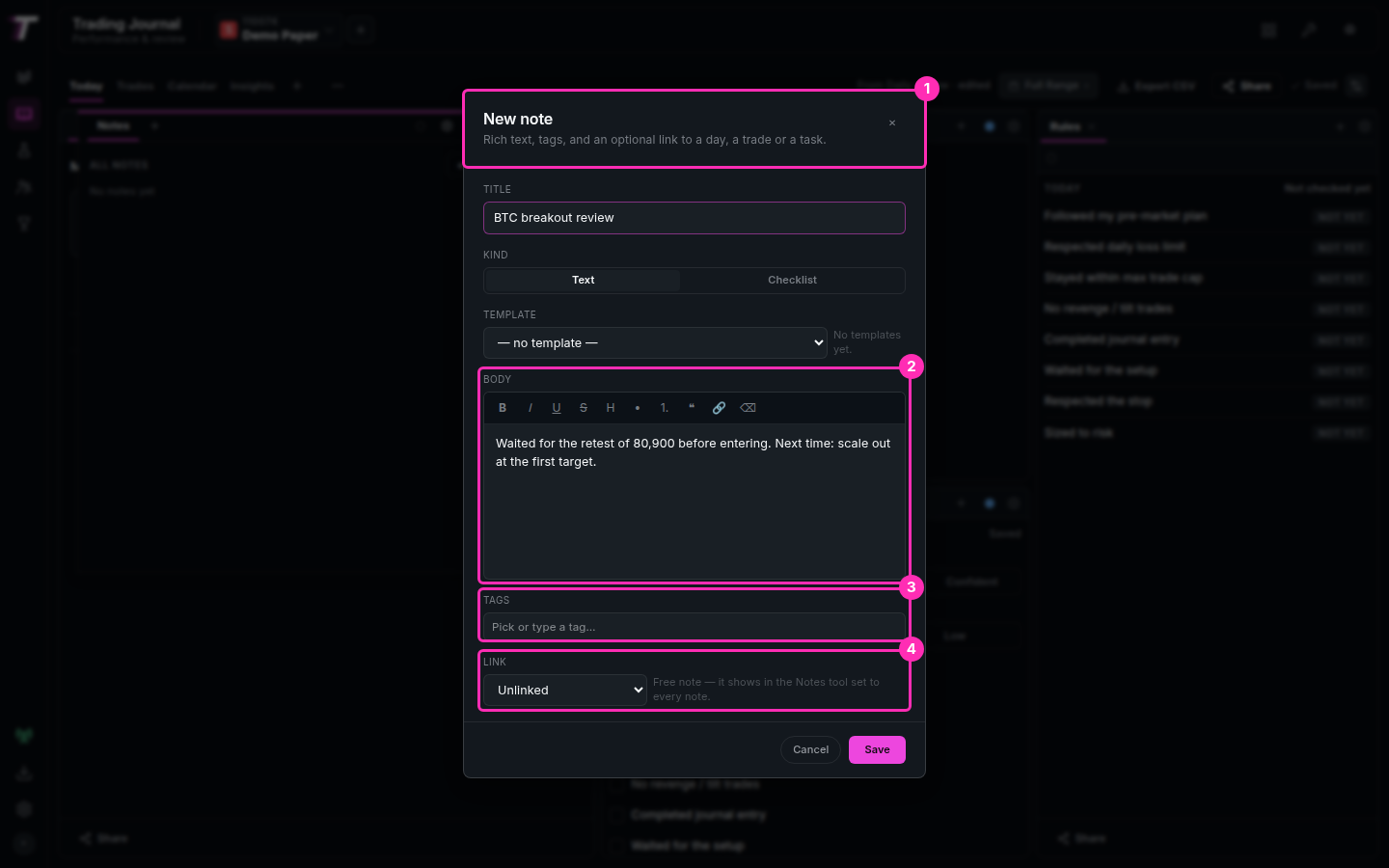
1 New note window · 2 Rich text editor · 3 Tags · 4 Link
Notes
A note has a Title, a Kind (Text or Checklist), a rich-text Body, Tags and an optional Link: Unlinked, Day, Trade or Note. The Notes tool's Notes shown setting chooses Of the day or trade picked or Every note; a free note only shows up in Every note.
- The Formatting bar offers Bold, Italic, Underline, Strikethrough, Heading, bulleted and numbered lists, Quote, Insert link and Clear formatting.
- In the list, filter by All links and All tags, by Checklists, or search by title and body.
- A Checklist note has Items (Add item), an optional Due date and a count such as "2/5 done"; a late one shows Overdue. Checklists replace the old Tasks page.
Note templates
In the Note templates tool, build templates with Name, Description, Template body and Default tags (for example, "Pre-market checklist" or "Weekly review"). When you pick a Template in a text note, the template's content replaces what you have already written — the app asks you to confirm.
Tags
Journal settings has four tabs: Tags, Tag types, Tag groups and Rules. A tag type has a Kind: Setup, Mistake, Emotion, Market or Custom.
- Type a name that does not exist and it becomes a new tag; separate several with
;. - In a group marked Single choice, only one tag of the group applies per item; picking another replaces the previous one.
- The Turn into a variable option (single-choice groups only) turns the group into a column in the grids and a field on goals and plans.
- Deleting a tag in use detaches it from every item.
Tags of a Setup type feed the Setup breakdown of the Breakdowns tool.
Attachments
Under Attachments in the Day notes tool, drop or click to attach screenshots. The app accepts PNG and JPG, resizes to 1200 px and shows the percentage of quota used. Use Remove attachment to delete one.
Checklists, process rules and planning
- Checklists — notes with Kind set to Checklist; the old Tasks.
- Process rules — daily or weekly Cadence and a target per week, edited in Journal settings > Rules and ticked in the Rules tool; the tab shows each rule's streak and 30-day adherence. The same tab holds Account rules, the day checklist of the active account.
- Planning — the Goals, Setups and Daily plan tools. Goals can be Daily, Weekly or Monthly; a Daily plan has a Long, Short or Neutral bias, max trades, max loss and focus of the day.
Frequently asked questions
Can I delete a note? Yes. The app asks for confirmation and the action cannot be undone.
Do my notes follow me to another device? Notes, tags, rules, goals and plans are saved in your account; the strip shows Saved, Saving, Offline or Not saved.
Is there an attachment limit? There is a quota, shown as a percentage.